
How to Enter Data in SPSS
Entering data correctly in SPSS is the foundation of every statistical analysis. No matter how advanced the test you plan to run, SPSS can only produce accurate and meaningful results if the data is entered, defined, and structured properly from the beginning. Many students struggle with SPSS not because statistics are difficult, but because small mistakes were made during data entry.
Learning how to enter data in SPSS the right way helps reduce errors, saves time, and ensures your results are accepted in assignments, projects, and research work. At SPSSDissertationHelp.com, incorrect data entry is one of the most common issues we correct. The steps below explain the process clearly, using real SPSS screenshots combined into a single visual guide.
Understanding Variable View and Data View in SPSS
SPSS works using two main screens that must always be used together: Variable View and Data View.
- Variable View is where you define your variables. This includes the variable name, data type, labels, value coding, missing values, and measurement level.
- Data View is where you enter the actual data values for each participant, case, or observation.
A common beginner mistake is typing values directly into Data View without defining variables first. This often leads to errors later when running analyses or creating graphs.
Visual Guide: SPSS Data Entry Workflow (Real Screenshots)
Below is a single combined image created from real SPSS screenshots.
Each panel shows an actual step in SPSS, with blue arrows highlighting exactly where to click.
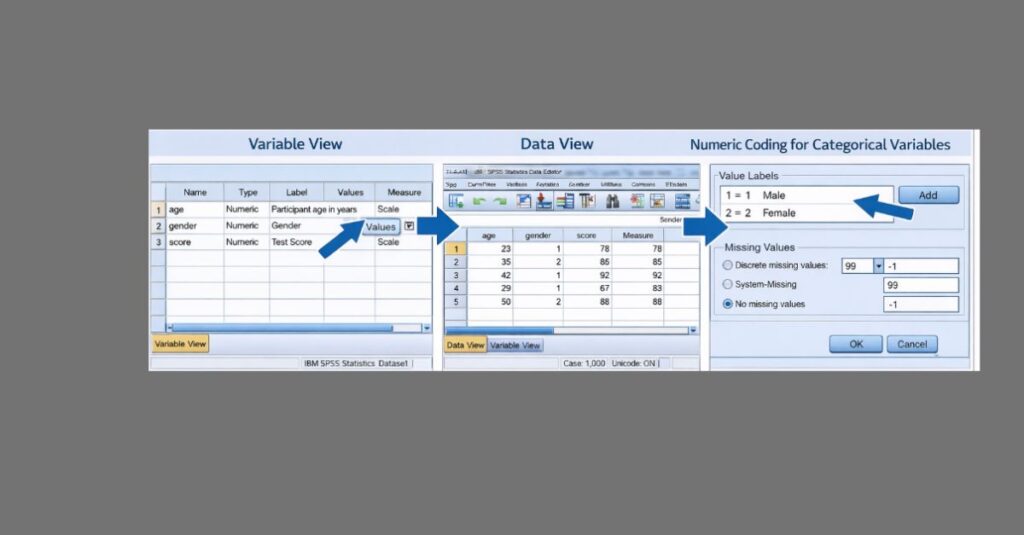
Figure 1. Real SPSS data entry workflow showing Variable View, Data View, and Value Labels combined into one rectangular image.
Step-by-Step: How to Enter Data in SPSS
Step 1: Open SPSS and Create a New Dataset
- Open SPSS.
- Select New Dataset.
- Click OK.
SPSS opens in Data View by default. Do not enter data yet.
Step 2: Switch to Variable View
- Click Variable View at the bottom left of the screen.
This is where all variables must be defined before data entry.
Step 3: Define Variable Names
In the Name column:
- Use short names with no spaces (e.g.,
age,gender,score) - Use underscores if needed (
test_score)
Each row represents one variable.
Step 4: Set Variable Type
In the Type column:
- Leave most variables as Numeric
- Avoid String unless absolutely necessary
Numeric variables allow SPSS to perform statistical calculations.
Step 5: Add Variable Labels
In the Label column:
- Enter clear descriptions, such as:
- Participant age in years
- Gender of respondent
Labels make output easier to understand.
Step 6: Define Value Labels (Categorical Variables)
For categorical variables (e.g., gender):
- Click the Values cell.
- Enter:
- Value:
1→ Label:Male - Value:
2→ Label:Female
- Value:
- Click Add after each value.
- Click OK.
Value labels allow SPSS to display categories instead of numbers.
Step 7: Select Measurement Level
In the Measure column:
- Nominal → categories (gender, marital status)
- Ordinal → ranked data (education level)
- Scale → continuous data (age, income, scores)
This helps SPSS suggest the correct tests.
Step 8: Switch to Data View
- Click Data View.
Each column is now a variable. Each row is one participant or case.
Step 9: Enter Data Values
- Enter numeric values only
- Each row = one participant
- Each column = one variable
Example:
- Gender → enter
1or2, not “Male” or “Female” - Age → enter actual numbers
Step 10: Define Missing Values (Optional but Recommended)
If your dataset uses missing codes:
- Go back to Variable View.
- Click the Missing column.
- Choose Discrete missing values.
- Enter
99or-1. - Click OK.
This prevents missing data from affecting results.
Step 11: Check Your Data Before Analysis
Before running any tests:
- Go to Analyze → Descriptive Statistics → Frequencies.
- Select categorical variables.
- Click OK.
Check for unexpected values or coding errors.
Common Mistakes When Entering Data in SPSS
Common errors include skipping Variable View, entering text instead of numeric codes, choosing the wrong measurement level, or leaving missing values undefined. These mistakes often lead to incorrect output and lost marks.
Why Proper Data Entry Matters in SPSS
Every SPSS analysis depends on how the data is entered. Incorrect variable definitions can lead to wrong test selection, invalid results, and confusing output. Instructors often penalize work not because the statistics are wrong, but because the dataset was poorly prepared.
When to Get Help With SPSS Data Entry
Some datasets are large or complex. In such cases, professional support can ensure data is entered correctly before analysis begins.
Many students rely on SPSS Homework Help, SPSS Assignment Help, or Dissertation Data Analysis Help from SPSSDissertationHelp.com to avoid costly errors and meet academic standards.
Final Thoughts
Learning how to enter data in SPSS correctly is one of the most important skills for beginners. When variables are defined properly and data is entered consistently, SPSS becomes easier to use and far less frustrating. This strong foundation supports accurate analysis, clear interpretation, and better academic results.
