
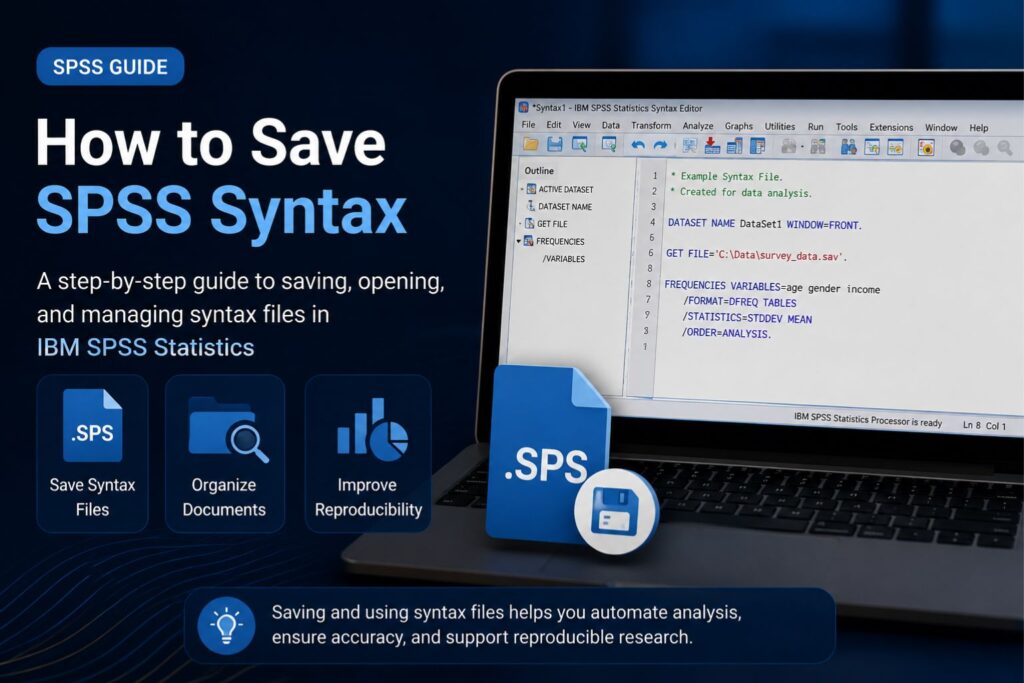
Saving SPSS syntax is one of the most important practices for researchers, dissertation students, and data analysts who want to ensure that their analyses can be reproduced accurately. Although IBM SPSS Statistics provides menu-driven options for performing statistical procedures, experienced researchers often prefer using syntax because it creates a permanent record of every analytical command.
Learning how to save SPSS syntax allows researchers to rerun analyses, document procedures, reduce manual errors, and maintain transparency throughout the research process. Whether you are conducting descriptive statistics, regression analysis, ANOVA, correlation analysis, or hypothesis testing, a saved syntax file makes it easier to reproduce results and respond to revisions from supervisors, journal reviewers, or collaborators.
In modern quantitative research, reproducibility and transparency have become increasingly important. For this reason, many universities and academic journals encourage researchers to preserve syntax files alongside datasets and output files. A well-organized SPSS syntax file provides a clear record of the analytical process and allows the same statistical procedures to be repeated whenever necessary.
How Do You Save SPSS Syntax?
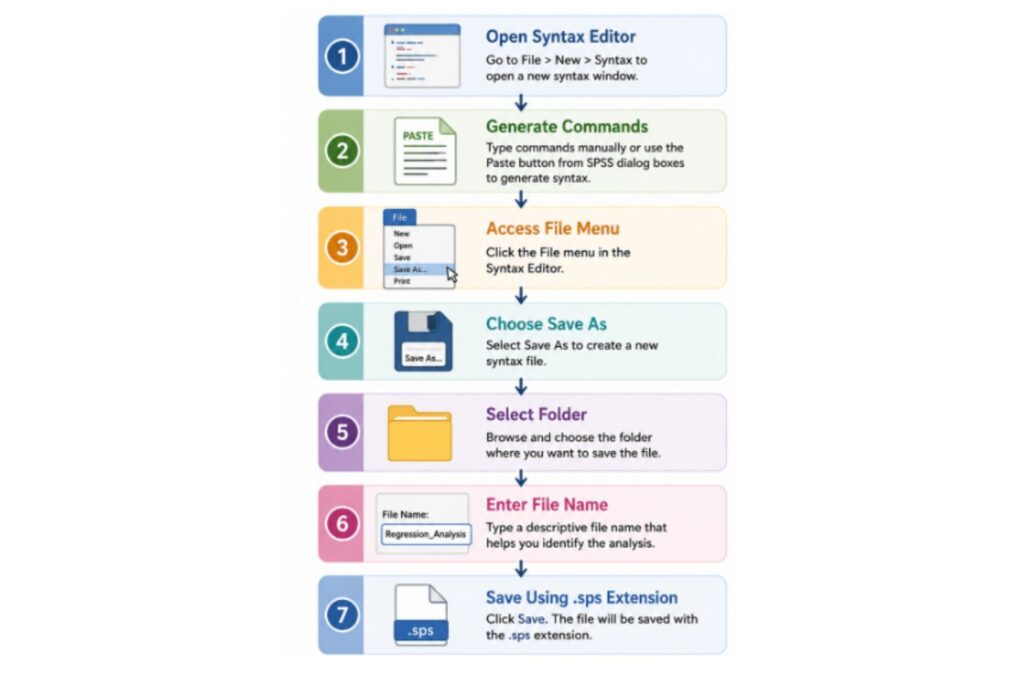
To save SPSS syntax, open the SPSS Syntax Editor, write or generate the syntax commands, select File > Save As, choose a folder location, enter a file name, and save the file using the .sps extension. Once saved, the syntax file can be reopened, edited, shared, and executed again whenever needed.
Saving syntax files is considered a best practice because it allows researchers to reproduce analyses accurately and maintain a complete record of statistical procedures.
What Is SPSS Syntax?
SPSS syntax is a text-based programming language used within IBM SPSS Statistics to perform statistical analyses. Instead of relying solely on menus and dialog boxes, researchers can use syntax commands to instruct SPSS to carry out specific procedures.
Every command written in the SPSS Syntax Editor can be saved as a syntax file with the .sps file extension. These files contain instructions rather than data or statistical output. As a result, syntax files provide a permanent record of how analyses were conducted.
Researchers frequently use SPSS syntax to perform tasks such as:
- Descriptive statistics
- Independent samples t-tests
- ANOVA
- Regression analysis
- Correlation analysis
- Reliability analysis
- Data transformations
- Variable recoding
Unlike output files and data files, syntax files do not store tables, charts, or raw observations. Instead, they preserve the commands used to generate those results.
Difference Between SPSS Syntax, Data Files, and Output Files
| File Type | Extension | Purpose |
|---|---|---|
| Data File | .sav | Stores raw data and variables |
| Output File | .spv | Stores tables, charts, and statistical results |
| Syntax File | .sps | Stores commands and analysis procedures |
Understanding these differences is important because many beginners mistakenly save output files instead of syntax files. While output files preserve statistical results, they do not contain the commands necessary to reproduce those results.
Why Researchers Should Save SPSS Syntax
Saving SPSS syntax offers several advantages for students and researchers. Although menu-driven analyses are convenient, they do not always provide a permanent record of the steps taken during analysis. Syntax files solve this problem by documenting every command used throughout the analytical process.
One of the biggest advantages of saving SPSS syntax is reproducibility. Modern research increasingly emphasizes transparency and open science practices. A saved syntax file enables researchers to repeat analyses accurately and verify their results without manually repeating each procedure.
Saving syntax files also reduces the possibility of mistakes. When analyses are performed manually, researchers may accidentally choose incorrect options or forget important settings. With saved syntax, the same procedures can be executed repeatedly, ensuring consistency across analyses.
Syntax files are also useful when collaborating with supervisors, committee members, or co-authors. Rather than explaining analytical procedures verbally, researchers can provide the exact commands used during the study.
Benefits of Saving SPSS Syntax
| Benefit | Description |
|---|---|
| Reproducibility | Allows analyses to be repeated accurately |
| Transparency | Documents analytical procedures |
| Documentation | Creates a permanent research record |
| Error Reduction | Minimizes manual mistakes |
| Efficiency | Saves time when rerunning analyses |
| Collaboration | Simplifies sharing with supervisors |
| Academic Integrity | Strengthens research credibility |
As research standards continue to evolve, maintaining syntax files has become an important aspect of good research practice.
Why SPSS Syntax Is Important for Reproducible Research
Reproducibility is a cornerstone of modern scientific research. Researchers are increasingly expected to demonstrate how their analyses were performed and provide enough information for others to verify the results.
Saving SPSS syntax supports reproducibility because it preserves the exact commands used during analysis. If the dataset changes or additional participants are added, researchers can simply rerun the syntax rather than repeating each procedure manually.
Saved syntax files are particularly valuable when:
- Revising dissertation chapters.
- Responding to reviewer comments.
- Updating datasets.
- Conducting replication studies.
- Sharing analyses with collaborators.
- Preparing journal publications.
Many academic journals encourage authors to maintain syntax files because they enhance transparency and improve research quality.
Benefits of Syntax for Reproducible Research
| Benefit | Importance |
|---|---|
| Transparency | Documents analytical decisions |
| Reproducibility | Enables analyses to be repeated |
| Verification | Supports peer review |
| Collaboration | Facilitates teamwork |
| Academic Integrity | Improves research quality |
Researchers who maintain organized syntax files are often better equipped to reproduce findings and defend their analytical decisions.
Who Should Save SPSS Syntax?
Saving SPSS syntax is beneficial for researchers at all levels of experience. Although beginners often rely on menus, learning how to save SPSS syntax can greatly improve efficiency and reduce the amount of time required to repeat analyses.
Researchers who benefit most from saving syntax include:
- Undergraduate students.
- Master’s students.
- MBA researchers.
- PhD candidates.
- Healthcare researchers.
- Psychology researchers.
- Business analysts.
- Social science researchers.
- Market researchers.
Regardless of the field of study, maintaining syntax files provides a reliable way to document and reproduce statistical analyses.
Why Saving SPSS Syntax Matters in Dissertation Research
Dissertation projects often involve multiple stages of analysis spread across several months. Students may conduct descriptive statistics, reliability analysis, correlation analysis, regression analysis, t-tests, and ANOVA procedures throughout the research process.
Without saved syntax files, repeating these analyses can become time-consuming and increase the likelihood of mistakes. A well-organized syntax file provides a clear roadmap of the entire analytical process and makes it easier to implement revisions suggested by supervisors.
Saving SPSS syntax is particularly useful when:
- Writing Chapter 4 of a dissertation.
- Revising statistical analyses.
- Updating datasets.
- Correcting analytical errors.
- Responding to supervisor comments.
- Preparing journal articles.
Students who need assistance with statistical analysis and interpretation can explore SPSS Data Analysis Help for support with quantitative research and dissertation statistics. Researchers planning their studies may also benefit from Research Methodology Help to strengthen research design and data collection procedures.
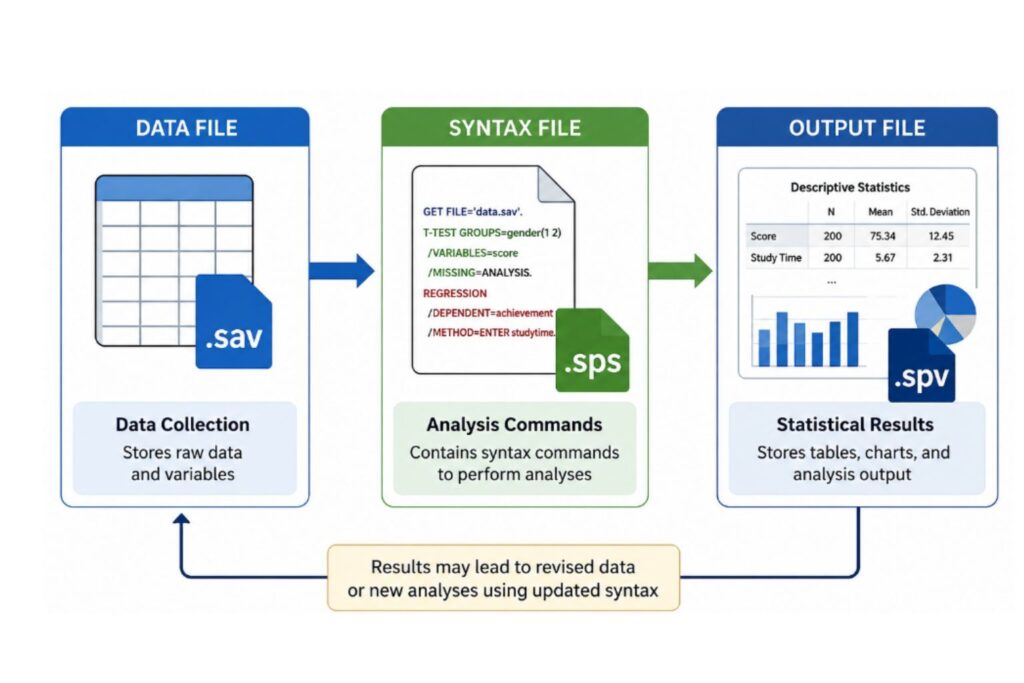
| Stage | File Type | Extension |
|---|---|---|
| Data Collection | Data File | .sav |
| Analysis Commands | Syntax File | .sps |
| Statistical Results | Output File | .spv |
The figure illustrates how syntax files act as the bridge between raw data and statistical output. By saving SPSS syntax files, researchers ensure that their analyses can be reproduced accurately at any time.
Common Uses of Saved SPSS Syntax
Researchers save SPSS syntax files for many reasons beyond simply preserving commands. In practice, syntax files serve as an essential component of research documentation and quality control.
Common applications include:
- Re-running analyses after updating datasets.
- Creating a permanent record of analytical procedures.
- Sharing methods with supervisors and collaborators.
- Supporting journal publication requirements.
- Performing quality control checks.
- Updating regression or ANOVA models.
- Reproducing results for conference presentations.
- Conducting replication studies.
As expectations for transparency and reproducibility continue to grow, saving SPSS syntax has become an increasingly valuable skill for researchers and dissertation students.
Step-by-Step Instructions for Preserving SPSS Commands
Once researchers understand the importance of syntax files, the next step is learning the proper procedure for preserving commands for future use. A well-maintained syntax document allows analyses to be repeated, modified, and shared without having to recreate every statistical procedure from scratch.
Many researchers begin with menu-driven analysis and later discover the benefits of maintaining command files. Fortunately, IBM SPSS Statistics makes this process simple and accessible, even for beginners.
Opening the Syntax Editor
The Syntax Editor is the workspace where command statements are written and managed. Researchers can manually type commands or generate them automatically from dialog boxes.
To create a new syntax window:
- Select File from the menu bar.
- Choose New.
- Click Syntax.
A blank editor window will appear, providing a space where procedures can be entered, edited, and executed.
Unlike output windows, the editor stores analytical instructions rather than results. This distinction is important because commands provide a record of how tables and charts were produced.
Generating Commands Using the Paste Function
Many researchers prefer not to write command statements manually. IBM SPSS Statistics provides a convenient Paste option that automatically converts menu selections into command language.
Instead of pressing OK after selecting a statistical procedure, researchers can click Paste. The software then sends the commands directly to the editor window.
For example, running descriptive statistics may generate commands similar to:
DESCRIPTIVES VARIABLES=Age Income Satisfaction
/STATISTICS=MEAN STDDEV MIN MAX.
This approach allows researchers to:
- Maintain a record of procedures.
- Modify commands later.
- Repeat analyses quickly.
- Improve research transparency.
- Reduce manual errors.
For beginners, the Paste feature provides an excellent introduction to command-based analysis.
Choosing the Appropriate Saving Option
After creating commands, the next step involves selecting the appropriate saving method.
IBM SPSS Statistics provides two choices:
Save
The Save option updates an existing file while keeping the same name and location.
Save As
The Save As option creates a new document or allows users to choose a different file name and storage location.
Researchers creating a new project should typically use Save As, since it provides greater flexibility and reduces the risk of accidentally overwriting previous work.
Comparison Between Save and Save As
| Feature | Save | Save As |
|---|---|---|
| Updates an existing document | Yes | No |
| Creates a new document | No | Yes |
| Allows renaming | No | Yes |
| Changes storage location | No | Yes |
| Recommended for first-time use | No | Yes |
Using descriptive file names and maintaining different versions can simplify project management during dissertation research.
Selecting a Suitable Storage Location
Proper file organization plays an important role in maintaining research efficiency. Storing command files in clearly labeled folders makes it easier to locate and reuse analyses months or even years later.
Common storage locations include:
- Dissertation folders.
- Desktop project directories.
- OneDrive.
- Google Drive.
- Dropbox.
- External hard drives.
- Shared research folders.
Researchers working on large studies often separate:
- Raw datasets.
- Command files.
- Output documents.
- Figures and tables.
- Dissertation chapters.
This structure minimizes confusion and promotes efficient project management.
Common Storage Options
| Location | Advantages |
|---|---|
| Local computer | Quick access |
| OneDrive | Automatic backup |
| Google Drive | Accessibility from multiple devices |
| Dropbox | Easy collaboration |
| External drive | Additional protection |
Maintaining backup copies is highly recommended because command files often represent months of analytical work.
Naming Files Effectively
Good naming conventions make it easier to identify analyses and distinguish between different versions.
Poor examples include:
- Syntax1
- AnalysisFinal
- TestFile
More descriptive names include:
- Regression_Model_Chapter4
- Reliability_Analysis_CronbachAlpha
- ANOVA_GroupComparison
- Correlation_StudyVariables
Including dates or version numbers can further improve organization.
Examples:
- Chapter4_Regression_V1
- Chapter4_Regression_V2
- SurveyAnalysis_March2026
Consistent naming conventions reduce confusion and make collaboration easier.
Understanding the .sps Extension
Command documents created in IBM SPSS Statistics use the .sps extension.
This extension indicates that the file contains instructions rather than raw observations or statistical output.
The .sps format allows researchers to:
- Reopen files later.
- Modify procedures.
- Execute commands repeatedly.
- Share analyses with supervisors.
- Maintain reproducible workflows.
Because these files are text-based, they are relatively small and easy to archive.
Summary of the Procedure
| Step | Action |
|---|---|
| 1 | Open the Syntax Editor |
| 2 | Generate commands manually or with Paste |
| 3 | Access the File menu |
| 4 | Select Save As |
| 5 | Choose a storage location |
| 6 | Enter a descriptive file name |
| 7 | Save using the .sps extension |
Following these steps helps ensure that analyses remain organized and reproducible throughout a research project.
Process used to preserve command files in IBM SPSS Statistics.
Creating Command Files From Existing Analyses
Researchers often perform procedures through menus and later realize that they need a permanent record of the process.
Fortunately, SPSS provides a simple solution.
Most statistical procedures include a Paste button. Selecting this option transfers the command statements to the editor window instead of immediately executing the analysis.
This method enables researchers to:
- Preserve analytical procedures.
- Review settings.
- Modify options.
- Repeat analyses later.
- Improve transparency.
Consequently, even researchers who primarily use menus can gradually transition to command-based workflows.
Maintaining a Continuous Record of Procedures
Experienced researchers often keep a single command document that records every analysis performed throughout the project.
This approach provides several advantages:
- Faster revisions.
- Improved reproducibility.
- Reduced errors.
- Better documentation.
- Easier collaboration.
Maintaining a running log becomes especially valuable during dissertation research, where analyses frequently change after feedback from supervisors or committee members.
Where Are These Files Stored?
The software does not automatically place command files in a specific location. Instead, the files are stored wherever the researcher chooses during the saving process.
Popular locations include:
- Project folders.
- Dissertation directories.
- Cloud storage services.
- External backup devices.
- Shared research drives.
Researchers working with large projects often benefit from maintaining a dedicated folder structure.
For example:
Dissertation Project
│
├── Raw Data
├── Command Files
├── Output Files
├── Tables and Figures
└── Thesis Chapters
Organizing materials in this way improves efficiency and reduces the possibility of losing important work.
Researchers seeking assistance with statistical procedures and output interpretation can explore SPSS Data Analysis Help for guidance with quantitative research and dissertation analysis
How to Open a Saved SPSS Syntax File
After preserving command files, researchers often need to reopen them to modify procedures, rerun analyses, or apply the same methods to updated datasets. Fortunately, IBM SPSS Statistics makes it easy to access previously created command documents.
Being able to reopen analytical procedures is particularly useful in dissertation research, where datasets frequently change and supervisors may request revisions throughout the study.
Opening Previously Created Files
Researchers can access previously created command documents by following these steps:
- Open IBM SPSS Statistics.
- Select File from the menu bar.
- Choose Open.
- Click Syntax.
- Browse to the location where the file is stored.
- Select the document.
- Click Open.
Once opened, the commands appear in the editor window and can be reviewed, modified, or executed again.
Summary of Steps for Opening Existing Files
| Step | Action |
|---|---|
| 1 | Launch IBM SPSS Statistics |
| 2 | Select File |
| 3 | Choose Open |
| 4 | Click Syntax |
| 5 | Locate the document |
| 6 | Select the file |
| 7 | Open the file |
Reopening command documents saves time and eliminates the need to repeat statistical procedures manually.
Editing Previously Saved Commands
One of the biggest advantages of maintaining command documents is flexibility. Researchers can modify procedures whenever changes are required.
Common reasons for editing commands include:
- Adding new variables.
- Updating datasets.
- Changing statistical procedures.
- Modifying variable labels.
- Revising regression models.
- Incorporating supervisor feedback.
For example, a researcher who originally analyzed 150 participants may later expand the dataset to 250 participants. Rather than recreating every procedure manually, the existing commands can simply be rerun using the updated data.
This capability significantly improves efficiency and reduces the possibility of mistakes.
Running Commands Again
Previously created command documents can be executed repeatedly. This feature supports reproducible research and ensures consistency throughout the analytical process.
Researchers commonly rerun procedures when:
- Additional responses are collected.
- Missing data have been corrected.
- Outliers have been removed.
- New variables have been introduced.
- Alternative models are being tested.
Executing existing commands ensures that analyses are performed consistently across different versions of the dataset.
Can You Recover Unsaved Work?
Many researchers accidentally close the editor window before preserving their work. Although recovery is not always guaranteed, several approaches may help retrieve unsaved commands.
Potential recovery methods include:
- Checking temporary files.
- Reviewing automatic backup folders.
- Examining journal files.
- Reopening recently accessed documents.
- Searching cloud storage services.
The likelihood of recovery depends on the software settings and whether the file had been preserved previously.
To minimize the risk of losing work, researchers should develop the habit of preserving command documents regularly during analysis.
Common Reasons Files Cannot Be Found
Researchers sometimes believe that their work has disappeared when, in reality, the document has been stored in an unexpected location.
Common causes include:
- Saving files in the wrong folder.
- Renaming directories.
- Moving project folders.
- Using multiple cloud storage accounts.
- Accidentally deleting files.
Maintaining an organized folder structure can help avoid these problems.
Common Causes and Solutions
| Problem | Possible Solution |
|---|---|
| File cannot be located | Search the computer using the file name |
| Wrong folder selected | Check project directories |
| Deleted document | Review recycle bin |
| Cloud synchronization issue | Verify OneDrive or Google Drive |
| Renamed folder | Search recent locations |
Organized project folders make it easier to manage analytical documents throughout dissertation research.
Why Files Sometimes Fail to Save
Several factors can prevent IBM SPSS Statistics from preserving command documents correctly.
Common causes include:
- Insufficient storage space.
- Permission restrictions.
- Read-only folders.
- Network connection issues.
- Corrupted storage devices.
- Problems with cloud synchronization.
In many cases, changing the storage location solves the problem.
Troubleshooting Guide
| Problem | Recommended Solution |
|---|---|
| Permission denied | Save to another folder |
| Disk full | Free storage space |
| Network interruption | Save locally first |
| Cloud sync error | Verify synchronization settings |
| Read-only directory | Select a different location |
Understanding these issues can prevent unnecessary frustration and reduce the likelihood of losing important analytical work.
Best Practices for Organizing Analytical Projects
Good organization is essential for efficient research management. Researchers who maintain structured project folders can locate documents more quickly and avoid duplication.
Many experienced researchers separate materials into folders such as:
- Raw data.
- Command documents.
- Output files.
- Tables and figures.
- Dissertation chapters.
- References.
A recommended structure is shown below:
Dissertation Project
│
├── Raw Data
├── Command Documents
├── Output Files
├── Tables and Figures
├── Literature Review
└── Thesis Chapters
This approach helps maintain consistency and improves productivity throughout the research process.
File Naming Best Practices
Descriptive file names make it easier to identify analyses and track revisions.
Examples of effective naming conventions include:
- Chapter4_Regression_Model1
- Reliability_Analysis_Final
- ANOVA_GroupComparison
- Correlation_StudyVariables
- DescriptiveStatistics_March2026
Researchers may also include version numbers to distinguish revisions.
Examples:
- Regression_Model_V1
- Regression_Model_V2
- Regression_Model_Final
Using consistent naming conventions improves collaboration and simplifies project management.
Recommended Folder Structure for Research Projects
The figure illustrates a recommended folder structure that helps researchers organize analytical materials efficiently and reduce the likelihood of losing important documents.
Opening Previously Created Command Files
The figure summarizes the process used to reopen previously created command documents for editing and reanalysis.
Researchers who require assistance interpreting statistical output and reporting findings can explore Dissertation Statistics Help for support with quantitative research. Those planning study design and data collection procedures may also benefit from Research Methodology Help.
How SPSS Command Files Support Reproducible Research
Reproducibility has become one of the most important principles in modern quantitative research. Researchers are increasingly expected to demonstrate exactly how analyses were conducted and provide sufficient documentation so that results can be verified and replicated.
Maintaining command documents plays a central role in achieving these objectives. Rather than relying on memory or manually repeating statistical procedures, researchers can execute the same instructions whenever additional analyses are required.
This approach promotes transparency, consistency, and accuracy while reducing the likelihood of human error.
Benefits for Reproducible Research
| Advantage | Importance |
|---|---|
| Transparency | Documents analytical procedures |
| Verification | Allows others to confirm findings |
| Consistency | Ensures identical procedures are applied |
| Efficiency | Eliminates repetitive manual work |
| Credibility | Strengthens research quality |
| Collaboration | Facilitates communication with supervisors |
Researchers who maintain organized command documents are generally better prepared for revisions, peer review, and publication.
Importance in Dissertation Research
Graduate students often spend several months collecting data, performing analyses, and revising results chapters. During this process, statistical procedures may need to be repeated multiple times.
Without properly documented procedures, revising analyses can become difficult and time-consuming.
Maintaining analytical instructions offers several advantages during dissertation preparation:
- Simplifies Chapter 4 revisions.
- Supports transparency.
- Facilitates supervisor feedback.
- Improves consistency across analyses.
- Reduces errors when updating datasets.
- Provides evidence of sound research practices.
Students preparing quantitative dissertations frequently find that maintaining analytical records significantly reduces stress during revisions.
Researchers needing support with study design and methodology may explore Research Methodology Help.
Benefits for Collaboration With Supervisors
Collaboration is an important part of academic research. Supervisors and committee members often request clarification regarding analytical procedures, variable coding, or statistical decisions.
Providing documented procedures allows supervisors to:
- Review analytical choices.
- Verify assumptions.
- Suggest modifications.
- Replicate findings.
- Identify potential problems.
This level of transparency strengthens communication and helps ensure that the research meets academic standards.
Researchers working with co-authors or research teams also benefit from maintaining detailed analytical records because everyone can work from the same procedures.
Advantages for Journal Publications
Many academic journals emphasize transparency and reproducibility. Editors and reviewers increasingly expect authors to provide detailed descriptions of analytical procedures.
Maintaining command documents helps researchers:
- Respond to reviewer comments.
- Verify statistical procedures.
- Reproduce published findings.
- Improve methodological transparency.
- Strengthen research credibility.
As open science practices continue to evolve, preserving analytical instructions is becoming an increasingly valuable component of responsible research.
Why Researchers Prefer Commands Over Menus
Although menu-driven procedures are easy to use, experienced researchers often prefer command-based approaches because they provide greater flexibility and efficiency.
Comparison Between Menu-Based and Command-Based Analysis
| Feature | Menus | Commands |
|---|---|---|
| Easy for beginners | Yes | Moderate |
| Reproducibility | Limited | Excellent |
| Automation | Limited | Strong |
| Efficiency | Moderate | High |
| Documentation | Weak | Excellent |
| Editing procedures | Difficult | Easy |
| Collaboration | Moderate | Excellent |
For large projects involving multiple analyses, commands often provide a more efficient workflow.
Applications in Different Fields
The ability to preserve analytical procedures benefits researchers across numerous disciplines.
Common areas include:
- Business research.
- Healthcare studies.
- Psychology.
- Sociology.
- Education.
- Economics.
- Public health.
- Marketing.
- Management.
Regardless of discipline, maintaining organized procedures improves research quality and simplifies future revisions.
Frequently Asked Questions
Open the Syntax Editor, generate or enter commands, select File, choose Save As, specify a storage location, enter a file name, and save the document using the .sps extension. This creates a reusable file that can be reopened and executed later.
IBM SPSS Statistics uses the .sps extension. Files with this extension contain analytical instructions rather than raw data or output tables.
Yes. Researchers can reopen documents at any time and make changes to variables, procedures, or models. This flexibility allows analyses to evolve throughout the research process.
Recovery depends on whether backup copies exist and how the file was deleted. Researchers should regularly maintain backups and use cloud storage services to minimize the risk of losing important work.
Output files contain statistical tables, charts, and results. Command files contain the instructions used to generate those results. Maintaining both types of files supports transparency and reproducibility.
Yes. Sharing documented procedures allows supervisors to review analytical decisions and provide feedback more efficiently.
Graduate students frequently revise analyses during dissertation preparation. Maintaining detailed records helps simplify revisions and reduces the possibility of errors.
Neither approach is inherently superior. Menus are easier for beginners, whereas command-based workflows offer greater flexibility, efficiency, and reproducibility.
Researchers commonly store documents on local computers, OneDrive, Google Drive, external drives, and dedicated project folders. Multiple backup locations are recommended.
Yes. Maintaining analytical documentation supports transparency and helps researchers respond to reviewer comments more effectively.
Final Thoughts
Learning how to save SPSS syntax is an essential skill for researchers, dissertation students, and analysts who want to improve reproducibility and maintain accurate records of their statistical procedures. Well-organized command documents make it easier to update datasets, rerun analyses, collaborate with supervisors, and respond to reviewer comments.
As expectations for transparency and open science continue to increase, preserving analytical procedures has become an important component of responsible research practice. Researchers who maintain organized documentation are often better prepared for dissertation revisions, journal submissions, and future projects.
