How to Merge Files in SPSS
Merging files in SPSS is a common data preparation step when your research data is stored in more than one file. This often happens in dissertation, thesis, survey, clinical, education, psychology, business, and public health projects. One file may contain demographic details, another may contain questionnaire responses, and another may contain pretest or posttest results.
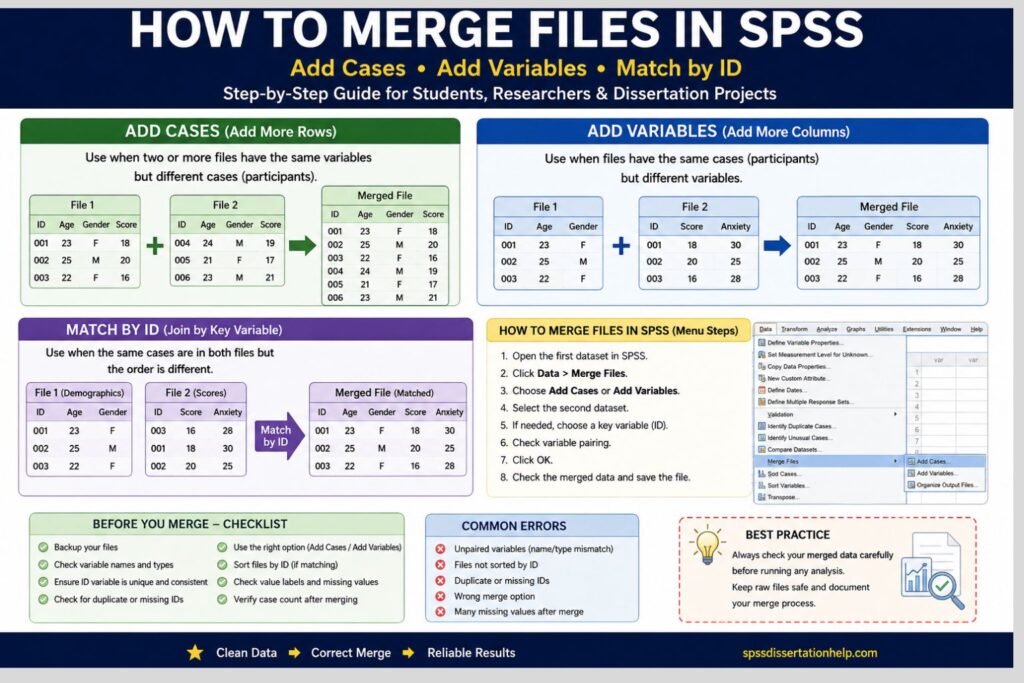
SPSS allows you to merge files in two main ways: Add Cases and Add Variables. Use Add Cases when you want to add more rows. Use Add Variables when you want to add more columns. When two files contain the same participants, students, patients, or records, you usually need a unique ID variable so SPSS can match the correct records.
Merging files sounds simple, but small mistakes can damage your dataset. If cases are duplicated, IDs do not match, variables are paired incorrectly, or files are merged in the wrong direction, your statistical results may become inaccurate. That is why you should always prepare your files, save backups, check the merged dataset, and document the steps before running analysis.
This guide explains how to merge files in SPSS using Add Cases, Add Variables, and match merging by ID. It also includes examples, SPSS syntax, pretest-posttest guidance, Excel file tips, quality checks, common errors, and dissertation data preparation advice.
What Does It Mean to Merge Files in SPSS?
To merge files in SPSS means to combine two or more datasets into one working dataset. In SPSS, each row is usually called a case, and each column is called a variable.
A case may represent a participant, student, patient, employee, organization, school, hospital, household, or survey response. A variable may represent age, gender, income, treatment group, test score, anxiety score, satisfaction score, blood pressure, medication adherence, or any other measured item.
You may need to merge SPSS files when:
- Your demographic data is in one file and your survey scores are in another file.
- Your pretest data and posttest data are stored separately.
- Your supervisor sends an updated file with additional variables.
- You export survey responses from different collection periods.
- You collect data from different groups and need one combined file.
- You receive Excel or CSV files that must be prepared for SPSS analysis.
- You need one final dataset for regression, ANOVA, t tests, chi-square, correlation, reliability analysis, factor analysis, or dissertation results.
For example, a nursing dissertation student may have one file with patient demographics and another file with self-care questionnaire scores. A psychology student may have baseline scores in one file and follow-up scores in another. A business student may have customer details in one file and purchase behavior in another.
In all these cases, merging files helps create one clean dataset for analysis.
Add Cases vs Add Variables in SPSS
Before you merge files in SPSS, decide whether you need to add cases or add variables. This is the most important decision because the two methods do different things.
| SPSS merge option | What it does | Best use | Simple example |
|---|---|---|---|
| Add Cases | Adds more rows | Files have the same variables but different participants or records | Combining survey responses from Group A and Group B |
| Add Variables | Adds more columns | Files have the same participants but different information | Combining demographics with questionnaire scores |
| Match by ID | Uses a key variable to align records | Same participants appear in different files, but row order may differ | Matching baseline and follow-up records by participant ID |
Use Add Cases when you want to add more people, participants, or records.
Use Add Variables when you want to add more information about the same people, participants, or records.
Use match merging by ID when SPSS must use a unique identifier to match each record correctly.
A simple way to remember the difference is:
Add Cases = add more rows.
Add Variables = add more columns.
Before You Merge Files in SPSS: Preparation Checklist
A correct merge begins before you click Data > Merge Files. Most SPSS merge problems happen because files were not prepared properly.
Use this checklist before merging:
| What to check | Why it matters |
|---|---|
| Backup copies | Protects the original raw data |
| Variable names | SPSS may not pair variables if names differ |
| Variable types | Numeric and string versions of the same variable may not merge correctly |
| ID variable | Needed when matching the same cases across files |
| Duplicate IDs | Duplicate records can create incorrect matches |
| Missing IDs | Records without IDs may not merge properly |
| Value labels | Different coding systems can distort interpretation |
| Missing value codes | One file may use 99, another may use blank cells |
| Case count | Helps verify whether the final merge worked |
| Filters or split files | Active filters may affect what appears in the dataset |
| File structure | Determines whether to use Add Cases or Add Variables |
For dissertation work, keep three versions of your data:
- Raw data — untouched original files.
- Cleaned data — corrected and prepared files.
- Merged analysis data — final file used for statistical analysis.
This protects your work and makes it easier to explain your data preparation process if your supervisor, statistician, or committee asks for clarification.
How to Merge Files in SPSS Using Add Cases
Use Add Cases when two or more files contain the same variables but different participants or records. This method stacks one dataset below another.
For example, suppose you have two survey files:
File 1: Group A
| ID | Age | Gender | Stress_Score |
|---|---|---|---|
| 001 | 22 | Female | 30 |
| 002 | 24 | Male | 27 |
File 2: Group B
| ID | Age | Gender | Stress_Score |
|---|---|---|---|
| 003 | 23 | Female | 31 |
| 004 | 25 | Male | 26 |
After using Add Cases, the merged file becomes:
| ID | Age | Gender | Stress_Score |
|---|---|---|---|
| 001 | 22 | Female | 30 |
| 002 | 24 | Male | 27 |
| 003 | 23 | Female | 31 |
| 004 | 25 | Male | 26 |
This is useful when your datasets have the same structure but were collected from different groups, locations, time periods, classes, hospitals, or survey batches.
Steps to Add Cases in SPSS
- Open the first dataset in SPSS.
- Click Data on the top menu.
- Select Merge Files.
- Click Add Cases.
- Choose the second dataset, either from open datasets or by browsing your computer.
- Review the variable list carefully.
- Check whether SPSS has paired matching variables correctly.
- If variables are unpaired, inspect their names, labels, and types.
- Click OK.
- Check the total number of cases.
- Save the merged file with a new name.
Do not overwrite your original raw file. Use a clear file name such as:
merged_group_a_group_b.sav
or
combined_survey_responses_clean.sav
How to Check an Add Cases Merge
After using Add Cases, the number of rows in the merged file should usually equal the total number of rows in the original files.
For example:
| File | Number of cases |
|---|---|
| Group A | 120 |
| Group B | 95 |
| Expected merged file | 215 |
If the merged file does not contain 215 cases, stop and check the source files, filters, selected files, and merge output before continuing.
Common Add Cases Problems
| Problem | Likely cause | Best fix |
|---|---|---|
| Variables appear as unpaired | Variable names differ across files | Rename variables consistently |
| Variable does not merge correctly | One version is numeric and another is string | Convert both variables to the same type |
| Extra variables appear | One file has variables missing in the other file | Decide whether to keep, delete, or recode them |
| Case count is wrong | Wrong file selected, filter active, or incomplete file used | Check file selection and remove filters |
| Value labels do not match | Coding differs across files | Standardize labels before merging |
| Results look strange later | Files were merged without checking structure | Return to the raw files and audit the merge |
Add Cases works best when both files have the same variable names, same measurement levels, same labels, and same coding systems.
How to Merge Files in SPSS Using Add Variables
Use Add Variables when two files contain the same participants or records but different variables. This method adds new columns to the dataset.
For example:
File 1: Demographic data
| ID | Age | Gender |
|---|---|---|
| 001 | 23 | Female |
| 002 | 25 | Male |
| 003 | 22 | Female |
File 2: Questionnaire scores
| ID | Anxiety_Score | Depression_Score |
|---|---|---|
| 001 | 18 | 21 |
| 002 | 12 | 15 |
| 003 | 20 | 24 |
After using Add Variables, the merged file becomes:
| ID | Age | Gender | Anxiety_Score | Depression_Score |
|---|---|---|---|---|
| 001 | 23 | Female | 18 | 21 |
| 002 | 25 | Male | 12 | 15 |
| 003 | 22 | Female | 20 | 24 |
This is common when demographic data, survey scores, scale totals, clinical variables, academic records, or follow-up outcomes are stored in separate files.
Steps to Add Variables in SPSS
- Open the main dataset in SPSS.
- Click Data.
- Select Merge Files.
- Click Add Variables.
- Select the second dataset.
- Choose the option to match cases using key variables.
- Move the ID variable into the key variable box.
- Make sure both files are sorted by the same ID variable.
- Review the variables that will be added.
- Click OK.
- Check the merged dataset carefully.
- Save the file using a new file name.
A good file name may be:
merged_demographics_questionnaire_scores.sav
or
dissertation_merged_analysis_file.sav
Why the ID Variable Is Important
When using Add Variables, the ID variable tells SPSS which row in one file belongs with the correct row in the other file. Without a reliable ID, SPSS may attach the wrong data to the wrong participant.
A strong ID variable should be:
| ID feature | Meaning |
|---|---|
| Unique | Each participant has only one ID |
| Consistent | The same ID appears in all files |
| Stable | The ID does not change between files or timepoints |
| Complete | No missing ID values |
| Clean | No extra spaces, hidden characters, or formatting differences |
| Non-duplicated | The same ID is not assigned to different people |
Good ID examples include:
P001STU045RESP102PT208CASE0007
Weak ID examples include:
- First name only
- Email address entered inconsistently
- Excel row number
- Participant initials only
- Phone number
- Duplicate codes
For dissertation data, create a clear participant ID before merging files. Avoid using names, emails, or other personal identifiers unless your ethics approval and data protection plan allow it.
How to Match Merge Files in SPSS by ID
A match merge is used when SPSS must align records using a common key variable. This is essential when both files contain the same participants but the row order is different.
Consider this example:
Dataset A
| ID | Age | Gender |
|---|---|---|
| 001 | 23 | Female |
| 002 | 25 | Male |
| 003 | 22 | Female |
Dataset B
| ID | Stress_Score | Sleep_Score |
|---|---|---|
| 003 | 29 | 6 |
| 001 | 21 | 8 |
| 002 | 25 | 7 |
The row order is different. If SPSS simply placed the rows side by side, scores could be assigned to the wrong participants. A match merge uses the ID variable to align the data correctly.
Correct merged file:
| ID | Age | Gender | Stress_Score | Sleep_Score |
|---|---|---|---|---|
| 001 | 23 | Female | 21 | 8 |
| 002 | 25 | Male | 25 | 7 |
| 003 | 22 | Female | 29 | 6 |
This is why ID matching is critical in pretest-posttest data, repeated measures, survey follow-ups, clinical datasets, and dissertation research projects.
How to Sort Files Before Match Merging
When using a key variable, sort both files by the same ID variable before merging.
To sort cases in SPSS:
- Open the dataset.
- Click Data.
- Select Sort Cases.
- Move the ID variable into the Sort By box.
- Choose ascending order.
- Click OK.
- Save the sorted version of the file.
Repeat this process for the second dataset.
If SPSS gives a message that files are not sorted by the key variable, do not ignore it. Sort the files first, then repeat the merge.
SPSS Syntax for Adding Cases
SPSS syntax is useful because it creates a record of your data preparation process. This matters in dissertation work because your supervisor, statistician, or committee may ask how the final dataset was created.
Use ADD FILES when combining datasets with the same variables but different cases.
ADD FILES
  /FILE='C:\Users\Student\Documents\group_a.sav'
  /FILE='C:\Users\Student\Documents\group_b.sav'.
EXECUTE.
Then save the merged dataset:
SAVE OUTFILE='C:\Users\Student\Documents\combined_groups.sav'.
EXECUTE.
This syntax stacks the two files into one active dataset.
SPSS Syntax for Match Merging by ID
Use MATCH FILES when combining files with the same cases but different variables.
GET FILE='C:\Users\Student\Documents\demographics.sav'.
SORT CASES BY ID.
SAVE OUTFILE='C:\Users\Student\Documents\demographics_sorted.sav'.

GET FILE='C:\Users\Student\Documents\survey_scores.sav'.
SORT CASES BY ID.
SAVE OUTFILE='C:\Users\Student\Documents\survey_scores_sorted.sav'.

MATCH FILES
  /FILE='C:\Users\Student\Documents\demographics_sorted.sav'
  /FILE='C:\Users\Student\Documents\survey_scores_sorted.sav'
  /BY ID.
EXECUTE.

SAVE OUTFILE='C:\Users\Student\Documents\merged_dissertation_data.sav'.
EXECUTE.
Change the file paths and variable names to match your project.
If your ID variable is called Participant_ID, then replace /BY ID with:
/BY Participant_ID.
How to Merge Excel Files in SPSS
Many students collect or receive data in Excel before importing it into SPSS. You can merge Excel files in SPSS, but it is safer to import each Excel file, check it, and save it as an SPSS .sav file first.
Steps to Prepare Excel Files for SPSS Merging
- Open SPSS.
- Go to File > Open > Data.
- Select the Excel file.
- Confirm that the first row contains variable names.
- Import the file.
- Check Data View.
- Check Variable View.
- Confirm variable names, labels, types, and missing value settings.
- Save the imported file as an SPSS
.savfile. - Repeat the process for the second Excel file.
- Merge the saved SPSS files using Add Cases or Add Variables.
Excel Problems That Can Affect SPSS Merging
| Excel issue | Why it matters in SPSS |
|---|---|
| Leading zeros disappear from IDs | 001 may become 1, causing failed matches |
| Mixed text and numbers | SPSS may import the variable incorrectly |
| Blank rows | Empty cases may appear in SPSS |
| Merged cells | SPSS may not read the file cleanly |
| Different date formats | Date variables may import inconsistently |
| Extra spaces in IDs | Matching may fail even when IDs look similar |
| Different variable names | Variables may not pair correctly |
| Hidden columns or filters | Imported data may not match what you expected |
If your participant IDs include leading zeros, format the ID column as text in Excel before importing it into SPSS.
How to Merge Pretest and Posttest Data in SPSS
Pretest-posttest data is common in nursing, education, psychology, public health, and social science dissertations. The correct merge method depends on how your data is structured and what analysis you plan to run.
Option 1: Pretest and Posttest as Separate Variables
Use Add Variables when the same participants appear in separate pretest and posttest files.
Pretest file
| ID | Pre_Stress | Pre_Knowledge |
|---|---|---|
| 001 | 30 | 55 |
| 002 | 28 | 60 |
Posttest file
| ID | Post_Stress | Post_Knowledge |
|---|---|---|
| 001 | 22 | 75 |
| 002 | 24 | 78 |
Merged file:
| ID | Pre_Stress | Post_Stress | Pre_Knowledge | Post_Knowledge |
|---|---|---|---|---|
| 001 | 30 | 22 | 55 | 75 |
| 002 | 28 | 24 | 60 | 78 |
This wide format is useful for:
- Paired-samples t tests
- Wilcoxon signed-rank tests
- Change scores
- Repeated-measures comparisons
- Pre-post descriptive tables
Option 2: Pretest and Posttest as Separate Rows
Use Add Cases when each participant has separate rows for each timepoint.
| ID | Time | Stress | Knowledge |
|---|---|---|---|
| 001 | Pretest | 30 | 55 |
| 001 | Posttest | 22 | 75 |
| 002 | Pretest | 28 | 60 |
| 002 | Posttest | 24 | 78 |
This long format may be useful for mixed models, repeated observations, or datasets with more than two timepoints.
Before merging pretest-posttest data, decide whether your analysis requires wide format or long format.
How to Merge Survey Data in SPSS
Survey data often comes from platforms such as Qualtrics, Google Forms, REDCap, Castor, Microsoft Forms, Excel, or institutional databases. These exports may contain timestamps, metadata, incomplete responses, duplicate submissions, consent variables, or hidden fields.
Common survey merge tasks include:
- Merging demographic data with questionnaire responses
- Merging baseline and follow-up survey files
- Combining responses from different recruitment groups
- Adding computed scale scores to a cleaned dataset
- Combining eligibility data with outcome data
- Merging repeated survey responses
- Joining survey responses with academic, clinical, or business records
Before merging survey data, check:
- Whether each participant has a unique ID
- Whether duplicate responses exist
- Whether incomplete responses should be removed
- Whether variable names are consistent
- Whether missing values are coded consistently
- Whether reverse-coded items have been handled correctly
- Whether scale totals were computed before or after merging
- Whether consent or eligibility variables should be retained
For dissertation data, document all decisions. Your supervisor may ask how you handled duplicate entries, incomplete responses, repeated submissions, or unmatched records.
How to Check Whether Your SPSS Merge Worked
After merging files, do not go directly to analysis. First, verify the merged dataset.
| Check | What to confirm |
|---|---|
| Case count | The number of rows is correct |
| Variable count | Expected variables were added |
| ID frequency | IDs are not unexpectedly duplicated |
| Missing values | Added variables are not mostly blank |
| Descriptive statistics | Values are within expected ranges |
| Value labels | Categories are coded correctly |
| Variable types | Numeric and string variables are correct |
| Manual record check | Selected IDs match across source files |
| Filters | No active filters affected the dataset |
| File name | The merged file was saved separately |
For Add Cases, the final number of rows should usually equal the total number of rows from the source files.
For Add Variables, the number of rows should usually remain the same as the main file, unless your merge intentionally changes the structure.
If the merged dataset has many missing values in the added variables, check the ID variable first. The most common causes are unmatched IDs, duplicate IDs, leading zeros, extra spaces, or string/numeric mismatches.
Common SPSS Merge Errors and How to Fix Them
| Problem | Likely cause | How to fix it |
|---|---|---|
| Files are not sorted | Files were not sorted by the key variable | Sort both files by the same ID variable |
| Key variable does not appear | ID variable has different names across files | Rename the ID variable consistently |
| Duplicate IDs appear | One participant appears more than once | Decide whether duplicates are valid or errors |
| Variables are unpaired | Variable names, formats, or types differ | Standardize names and variable types |
| Many missing values after merging | IDs did not match correctly | Check spaces, leading zeros, and formats |
| Wrong values are assigned to cases | Files were merged by row order instead of ID | Redo the merge using a key variable |
| Value labels are inconsistent | Coding differs between files | Recode and standardize labels |
| Extra variables appear | One file contains variables not found in the other | Keep, delete, or rename as needed |
| SPSS gives a type mismatch warning | One variable is string and another is numeric | Convert both to the same type |
| Results look wrong after analysis | Merge was not checked before testing | Return to the merged file and audit records |
A merge can fail silently. SPSS may create a merged dataset without showing an obvious error, but the records may still be incorrectly matched. Always verify the merged data before running statistical tests.
Best Practices for Dissertation Data Merging in SPSS
Merging files is part of research data management. It affects the quality of your results, tables, p-values, and final interpretation.
Keep Raw Files Untouched
Always keep the original files unchanged. Create working copies for cleaning, merging, and analysis.
Use Clear File Names
Avoid confusing names such as:
final_data_new_latest_updated2.sav
Use organized names such as:
raw_survey_export.sav
cleaned_demographics.sav
merged_analysis_dataset.sav
Create a Data Dictionary
A data dictionary should list each variable name, label, coding system, source file, missing value code, and any cleaning decision. This is helpful when working with multiple datasets.
Check IDs Before Merging
Run Frequencies on the ID variable before merging. Check for missing IDs, duplicate IDs, leading zeros, unexpected spaces, and inconsistent formats.
Keep SPSS Syntax
Syntax provides a reproducible record of your work. It also makes it easier to correct mistakes, repeat the merge, or explain your process in dissertation documentation.
Document the Merge Process
Record:
- The files merged
- The merge method used
- The key variable used
- The number of cases before and after merging
- Any unmatched records
- Any duplicate IDs
- Any variables renamed or removed
- Any checks completed after merging
Run Descriptive Checks Before Analysis
After merging, run Frequencies and Descriptives before performing statistical tests. This helps detect impossible values, incorrect coding, missing data problems, and merge errors.
Example Data Merge Audit Trail for Dissertation Work
A merge audit trail helps you document what happened during data preparation.
| Audit item | Example entry |
|---|---|
| Source files | demographics.sav and survey_scores.sav |
| Merge method | Add Variables |
| Key variable | Participant_ID |
| Cases before merge | 150 in demographics, 150 in survey scores |
| Cases after merge | 150 |
| Duplicate IDs | None found |
| Unmatched IDs | 2 IDs missing survey scores |
| Action taken | Checked raw survey export and confirmed incomplete responses |
| Final file saved as | merged_dissertation_analysis_data.sav |
Including this type of audit trail in your project notes helps protect the quality of your dissertation analysis.
When to Get SPSS Help With Merging Files
You may need SPSS help if your data is complex, messy, or tied to important dissertation results. Many students only realize there is a merge problem after their analysis produces strange results, unexpected missing values, incorrect group sizes, or inconsistent tables.
You may need professional SPSS support if:
- You have several SPSS, Excel, or CSV files.
- Your ID variable is inconsistent.
- You are merging pretest and posttest data.
- You have repeated survey responses.
- Your file has duplicate records.
- You are unsure whether to use Add Cases or Add Variables.
- Your merged file has unexplained missing values.
- Your supervisor needs a clean analysis dataset.
- You need data prepared for regression, ANOVA, t tests, chi-square, correlation, reliability analysis, or factor analysis.
At SPSS Dissertation Help, we help students clean, merge, check, and prepare datasets for dissertation analysis. This includes reviewing your files, correcting merge problems, preparing SPSS syntax, checking missing values, creating clean analysis files, and supporting your dissertation results chapter.
Frequently Asked Questions About How to Merge Files in SPSS
What is the difference between Add Cases and Add Variables in SPSS?
Add Cases adds more rows to your dataset. Use it when files have the same variables but different participants. Add Variables adds more columns. Use it when files have the same participants but different variables.
How do I merge two SPSS files with the same variables?
Use Data > Merge Files > Add Cases. This combines cases from one file with cases from another file.
How do I merge two SPSS files with different variables?
Use Data > Merge Files > Add Variables. If both files contain the same participants, match them using a unique ID variable.
Do I need an ID variable to merge files in SPSS?
You need an ID variable when matching the same cases across different files. An ID variable is not usually required for Add Cases, but it is still useful for tracking records.
Why are my variables unpaired in SPSS?
Variables may be unpaired because their names, formats, or types are different. For example, one file may store age as numeric while another stores age as text.
Why do I get missing values after merging files?
Missing values often appear when IDs do not match correctly. Check for leading zeros, extra spaces, duplicate IDs, string/numeric differences, and inconsistent ID formats.
Can I merge Excel files in SPSS?
Yes. Import each Excel file into SPSS, check the variables, save each file as an SPSS .sav file, and then merge the saved files.
How do I merge pretest and posttest data in SPSS?
If pretest and posttest data are in separate files for the same participants, use Add Variables and match by ID. If pretest and posttest data are stored as separate rows, use Add Cases and include a time variable.
Can I merge more than two files in SPSS?
Yes. You can merge more than two files, but it is safer to merge in stages and check each merged file before continuing.
Should I use SPSS syntax or the menu?
The menu is easier for beginners. Syntax is better for dissertation work because it creates a reproducible record of the merge process.
Conclusion
Knowing how to merge files in SPSS is essential when preparing dissertation, thesis, survey, or research data for analysis. Use Add Cases when your files have the same variables but different participants. Use Add Variables when your files have the same participants but different variables. Use a unique ID variable when SPSS needs to match records correctly across files.
A successful merge is not just about choosing the right menu option. You must prepare the files, check variable names, confirm variable types, review ID values, sort files when needed, verify the merged dataset, and save a clean copy for analysis.
A correctly merged SPSS file supports reliable results. A poorly merged file can affect every table, test, interpretation, and conclusion in your dissertation.
If you are working with multiple SPSS, Excel, CSV, or survey files and want to avoid mistakes, SPSS Dissertation Help can support you with data cleaning, file merging, dataset preparation, SPSS analysis, and dissertation results writing.