
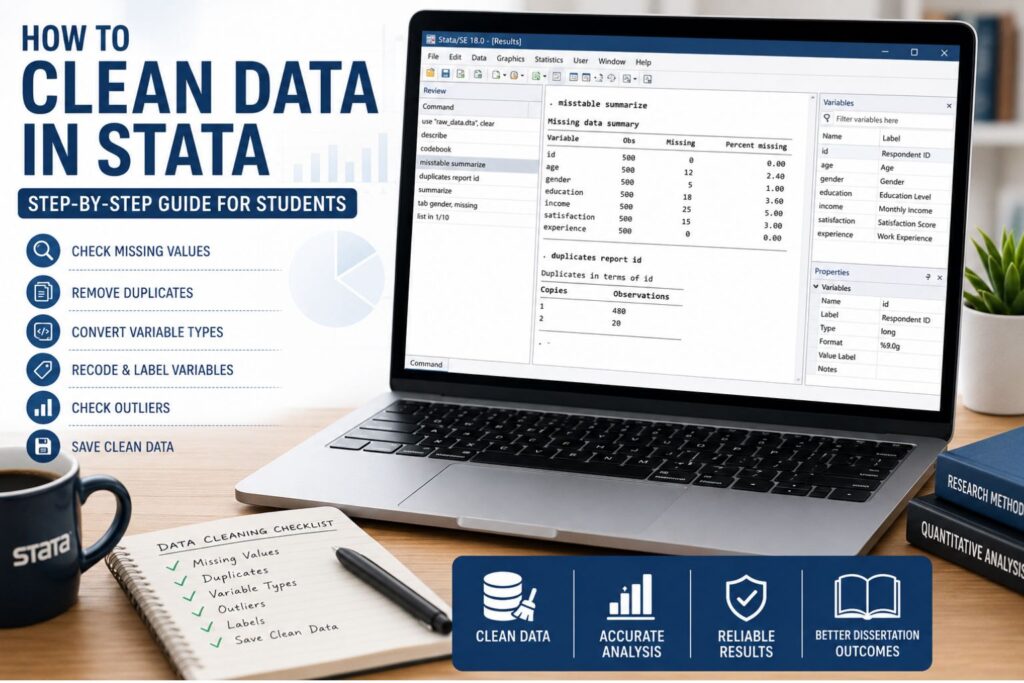
How to Clean Data in Stata: Step-by-Step Guide for Students
Clean data is the foundation of accurate statistical analysis. Before you run descriptive statistics, correlation, regression, ANOVA, chi-square tests, panel data analysis, or any other Stata procedure, your dataset must be checked and prepared correctly. If your data contains missing values, duplicate responses, incorrect variable types, inconsistent codes, outliers, or poorly labeled variables, your results can become misleading.
For dissertation and thesis students, this can affect the quality of Chapter 4, the accuracy of hypothesis testing, and the credibility of the final interpretation. Stata is helpful because it allows you to clean data using commands, save the process in a do-file, and repeat the same cleaning steps if your supervisor asks for revisions.
This guide explains how to clean data in Stata step by step. It is written for students working with questionnaire data, survey responses, secondary datasets, panel data, Excel files, CSV files, and research datasets that need to be prepared for dissertation analysis.
What Does Data Cleaning in Stata Mean?
Data cleaning in Stata means preparing raw data so it can be analyzed accurately. It involves checking the structure of the dataset, correcting coding errors, handling missing values, removing or reviewing duplicate records, converting variable types, labeling variables, recoding responses, checking outliers, and saving a clean version for analysis.
In dissertation research, data cleaning helps ensure that the results you report are based on reliable data. For example, if a missing response is coded as 999 and you fail to recode it as missing, Stata may treat it as a real number. This can distort the mean, standard deviation, correlation, or regression output.
Data cleaning does not mean changing your data to get a preferred result. It means correcting genuine data quality issues so your analysis remains accurate, transparent, and defensible. Students with complex or messy datasets can also use professional data cleaning services before moving to statistical analysis.
| Data Cleaning Task | Why It Matters in Dissertation Analysis | Common Stata Commands |
|---|---|---|
| Import data | Opens Excel, CSV, or Stata files for analysis | import excel, import delimited, use |
| Inspect variables | Helps you understand the dataset structure | describe, codebook, summarize |
| Check missing values | Identifies incomplete responses and coding errors | misstable summarize, tab, missing |
| Check duplicates | Prevents repeated cases from affecting results | duplicates report, duplicates list |
| Convert variable types | Allows statistical tests to run correctly | destring, encode |
| Recode variables | Prepares variables for analysis | recode, replace, generate |
| Label variables | Makes output easier to understand | label variable, label define, label values |
| Check outliers | Finds impossible or unusual values | summarize, detail, graph box, list |
| Merge datasets | Combines related files correctly | merge, append, isid |
| Save clean data | Creates an analysis-ready dataset | save, export excel, export delimited |
Why Data Cleaning Matters Before Stata Analysis
Data cleaning affects every result you produce in Stata. A dataset with errors can produce incorrect frequencies, misleading percentages, weak regression models, unreliable p-values, and inaccurate conclusions. This is especially risky in dissertation work because the final analysis must match the research questions, objectives, and hypotheses.
For example, duplicate survey responses can inflate your sample size. Incorrectly coded Likert-scale items can affect reliability analysis and scale scores. String variables that should be numeric can prevent Stata from running tests. Missing values coded as 99 or 999 can distort descriptive statistics. Outliers may also affect regression coefficients, especially when they represent data entry errors rather than valid extreme values.
Clean data helps you:
- Run accurate descriptive statistics
- Prepare reliable correlation and regression models
- Analyze questionnaire and survey responses correctly
- Test hypotheses with fewer data-related errors
- Report Chapter 4 findings clearly
- Avoid mistakes in tables and interpretation
- Explain your data preparation process in the methodology chapter
Students who need support with Stata commands, coursework, or interpretation can also use Stata assignment help when cleaning and analyzing research data becomes difficult.
Before You Start: Protect the Raw Dataset
Before you clean your data in Stata, save the original file separately. Never overwrite the raw dataset. If you make a mistake while cleaning, the raw file allows you to restart the process without losing the original data.
A safe Stata data cleaning workflow should include:
| File or Folder | Purpose |
|---|---|
| Raw data file | Stores the original unchanged dataset |
| Working data file | Stores the version used during cleaning |
| Clean data file | Stores the final analysis-ready dataset |
| Do-file | Records all Stata commands used during cleaning |
| Log file | Saves Stata output and cleaning checks |
| Notes file | Explains major decisions such as recoding and exclusions |
A simple setup may look like this:
clear all
set more off
capture log close

log using "data_cleaning_log.smcl", replace

use "raw_data.dta", clear

describe
codebook
summarize

save "working_data.dta", replace
The clear all command clears Stata’s memory. The set more off command prevents Stata from pausing long output. The log using command saves your output. The use command opens the dataset. The describe, codebook, and summarize commands help you inspect the data before making changes.
Using a do-file is important because it creates a repeatable record of your work. This is useful when your supervisor asks how you handled missing values, outliers, duplicates, or variable coding.
Step 1: Import Your Data into Stata
Students often collect data using Excel, Google Forms, Qualtrics, SurveyMonkey, KoboToolbox, or other online survey platforms. The data may be downloaded as an Excel file, CSV file, or Stata file.
For Excel data, use:
import excel "survey_data.xlsx", firstrow clearFor CSV data, use:
import delimited "survey_data.csv", clearFor an existing Stata file, use:
use "survey_data.dta", clearThe firstrow option tells Stata to use the first row of the Excel sheet as variable names. The clear option removes any dataset currently open in Stata.
After importing the data, check whether the file imported correctly. Common import problems include blank rows, long variable names, numbers stored as text, dates imported incorrectly, merged Excel cells, special characters, and missing responses. Fixing these issues early prevents problems later when you run statistical tests.
Step 2: Inspect the Dataset Structure
Before changing anything, inspect the dataset carefully. This helps you understand the number of observations, number of variables, variable types, missing values, and possible coding errors.
Use these commands:
describe
codebook
summarize
list in 1/10
browse
misstable summarize
The describe command shows variable names, storage types, formats, and labels. The codebook command gives more detailed information about variable values, ranges, unique values, and missing cases. The summarize command gives descriptive statistics for numeric variables. The list in 1/10 command displays the first ten observations. The browse command opens the data viewer. The misstable summarize command identifies missing values.
| Question to Ask | Why It Matters |
|---|---|
| How many observations are in the dataset? | Confirms the sample size |
| How many variables are available? | Confirms whether all questionnaire items imported |
| Which variables are numeric? | Shows what can be analyzed statistically |
| Which variables are strings? | Helps identify variables that may need conversion |
| Are there missing values? | Helps plan missing data handling |
| Are variable names clear? | Makes Stata commands easier to write |
| Are value labels available? | Makes output easier to interpret |
| Are ID variables unique? | Helps detect duplicates and merge issues |
This first inspection also helps you decide whether the dataset is ready for cleaning or whether the file needs correction before analysis.
Step 3: Rename Variables Clearly
Clear variable names make Stata analysis easier. Many survey platforms export variables as Q1, Q2, Q3, or long question text. These names can make commands difficult to write and results harder to interpret.
You can rename variables like this:
rename Q1 age
rename Q2 gender
rename Q3 education_level
rename Q4 job_satisfaction
Use short, clear, lowercase variable names. Use underscores instead of spaces. Avoid symbols, punctuation marks, and vague names where possible.
| Poor Variable Name | Better Variable Name |
|---|---|
| Q1 | age |
| Q2 | gender |
| RespondentAge | respondent_age |
| SatisfactionScore | satisfaction_score |
| Income Level | income_level |
| Var0001 | employment_status |
Good variable names help when running descriptive statistics, reliability analysis, correlation, regression, factor analysis, and hypothesis testing. They also make your do-file easier to understand when you return to it later.
Step 4: Convert String Variables to Numeric Variables
Some variables may look numeric but are stored as text. This often happens when data comes from Excel or CSV files. Stata cannot run many statistical tests on numeric values stored as strings.
Check variable types using:
describeIf age, income, test scores, or scale values are stored as strings, convert them using:
destring age, replace
destring income, replace ignore(",")
destring score, generate(score_num)
The replace option converts the original variable. The generate() option creates a new numeric version while keeping the original variable. The ignore(",") option tells Stata to ignore commas during conversion.
Do not convert every string variable. Names, phone numbers, participant codes, student IDs, and IDs with leading zeros should usually remain strings. For example, an ID such as 00125 may lose its leading zeros if converted to numeric.
For categorical text variables such as gender, education level, or marital status, use encode:
encode gender, generate(gender_num)This creates a numeric version of the variable with value labels. That version is easier to use in statistical analysis while still keeping readable categories.
Step 5: Check Missing Values in Stata
Missing values are common in student research datasets. A respondent may skip a question, stop halfway through a survey, leave demographic information blank, or provide an invalid response.
Use these commands to check missing values:
misstable summarize
misstable patterns
tab gender, missing
summarize age
codebook
You should also check for placeholder missing values. Some datasets use 99, 999, 9999, -99, NA, N/A, “Unknown,” or blank strings to represent missing responses. Stata may not automatically treat these as missing.
Examples:
replace age = . if age == 999
replace income = . if income == -99
replace satisfaction = . if satisfaction == 99
In Stata, . represents a missing numeric value.
Do not delete all missing values automatically. First, check how much data is missing, which variables are affected, and whether the missing values affect your main research questions. If the missing data problem is large, professional dissertation data analysis help can help students choose an appropriate approach before running final analysis.
| Missing Data Issue | Possible Action |
|---|---|
| Few missing demographic values | Report missingness |
| Missing outcome variable | Decide based on the analysis plan |
Placeholder code such as 999 | Recode to Stata missing |
| Many missing survey responses | Review response quality |
| Missing Likert-scale items | Apply justified scale scoring rules |
| Missing ID variable | Investigate before analysis |
| Blank string values | Standardize or recode carefully |
Missing data should be handled consistently and documented in your methodology or data preparation section.
Step 6: Check for Duplicate Responses
Duplicate records can affect your sample size and results. In survey research, duplicates may occur when one participant submits a form more than once. In secondary data, duplicates may result from repeated records, merging errors, or data entry mistakes.
Use:
duplicates report
duplicates list
To check duplicates using a specific ID variable:
duplicates report respondent_id
duplicates list respondent_id
To tag duplicates:
duplicates tag respondent_id, generate(dup_id)
list respondent_id if dup_id > 0
Do not delete duplicates blindly. First, decide whether repeated records are actual errors. In panel data, repeated IDs may be expected because the same student, patient, firm, country, or organization appears across different time periods.
To remove exact duplicate rows, use:
duplicates drop, forceOnly use this command after confirming that the duplicate rows are genuine errors. If duplicates are removed, record how many were removed and why.
Step 7: Recode Variables for Analysis
Recoding is common in dissertation analysis. You may need to group responses, create binary variables, combine small categories, reverse-code questionnaire items, or prepare variables for regression.
Example of recoding satisfaction scores:
recode satisfaction (1/2=0 "Low") (3=1 "Moderate") (4/5=2 "High"), generate(satisfaction_group)Example of creating a binary variable:
generate employed = .
replace employed = 1 if employment_status == "Employed"
replace employed = 0 if employment_status == "Unemployed"
Example of creating age groups:
generate age_group = .
replace age_group = 1 if age < 25
replace age_group = 2 if age >= 25 & age < 35
replace age_group = 3 if age >= 35
Recoding decisions should match your research questions and analysis plan. For example, if your dissertation compares employed and unemployed respondents, your employment variable must be coded clearly before analysis. If you combine categories, explain the reason in your methodology.
Step 8: Clean Likert-Scale Data in Stata
Many student dissertations use Likert-scale questions. These may measure satisfaction, motivation, anxiety, leadership style, service quality, academic performance, employee engagement, behavioral intention, or patient experience.
A common five-point Likert scale may look like this:
| Response | Code |
|---|---|
| Strongly disagree | 1 |
| Disagree | 2 |
| Neutral | 3 |
| Agree | 4 |
| Strongly agree | 5 |
If Likert responses are stored as text, standardize the text first:
replace q1 = trim(lower(q1))
replace q1 = "strongly disagree" if q1 == "strongly disagree "
If Likert responses are numeric but use placeholder missing codes, recode them:
replace q1 = . if q1 == 99
replace q2 = . if q2 == 99
replace q3 = . if q3 == 99
To create a scale score, use:
egen satisfaction_scale = rowmean(q1 q2 q3 q4 q5)Before creating a scale score, check whether all items are coded in the same direction. Negatively worded items must often be reverse-coded.
For a 1–5 scale, reverse coding can be done like this:
generate q3_reverse = 6 - q3If you forget to reverse-code negatively worded items, your scale score may be incorrect. This can affect reliability analysis, correlation, regression, and interpretation.
Step 9: Add Variable Labels and Value Labels
Labels make Stata output easier to understand. This is important when preparing dissertation tables, interpreting results, and explaining variables in Chapter 4.
Add variable labels:
label variable age "Respondent age"
label variable gender "Respondent gender"
label variable satisfaction_score "Overall satisfaction score"
Add value labels:
label define gender_lbl 1 "Male" 2 "Female"
label values gender gender_lbl
Variable labels describe what a variable means. Value labels describe what numeric codes mean. For example, without value labels, gender may appear as 1 and 2. With value labels, Stata can show Male and Female.
Clear labels are especially helpful when exporting tables, sharing output with a supervisor, or interpreting findings in a dissertation results chapter.
Step 10: Check Outliers and Impossible Values
Outliers are values that are unusually high, unusually low, or impossible. Some outliers are valid, while others are caused by data entry errors.
Use these commands:
summarize age, detail
summarize income, detail
graph box income
tab age
Check impossible values using list:
list respondent_id age if age < 18 | age > 100
list respondent_id income if income < 0
list respondent_id satisfaction if satisfaction < 1 | satisfaction > 5| Variable | Possible Error |
|---|---|
| Age | Negative values or unrealistic ages |
| Income | Negative income where not possible |
| Likert scale | Values outside the expected 1–5 range |
| Test scores | Scores above the maximum possible score |
| Percentages | Values above 100 |
| Dates | Future dates where not expected |
Do not remove outliers simply because they are extreme. First, investigate whether the values are valid or incorrect. A high income value may be real. A satisfaction score of 9 on a 1–5 scale is likely an error. If outliers are removed, corrected, or winsorized, explain the decision clearly.
Step 11: Clean Date Variables in Stata
Date variables often import incorrectly from Excel or CSV files. A date may appear as text, a number, or a format that Stata does not recognize. This matters when analyzing time-series data, panel data, pre-post intervention data, longitudinal data, or repeated observations.
For daily dates:
generate date_clean = date(date_string, "DMY")
format date_clean %td
For monthly dates:
generate month_clean = monthly(month_string, "YM")
format month_clean %tm
After cleaning dates, check whether they look correct:
list date_string date_clean in 1/10
summarize date_clean
If the converted dates look wrong, check the original format. A date written as day-month-year requires a different format from one written as month-day-year. Correct date formatting is important before running trend analysis, panel regression, time-based comparisons, or pre-post analysis.
Step 12: Merge Datasets Safely in Stata
Some dissertation projects use more than one dataset. For example, one file may contain survey responses and another file may contain demographic information. Another project may combine country-level data, firm-level data, financial data, or panel data from different sources.
Before merging, check whether the ID variable is unique:
isid respondent_id
duplicates report respondent_id
Then merge the datasets:
merge 1:1 respondent_id using "demographics.dta"
tab _merge
The _merge variable shows whether observations matched between the two datasets.
_merge Value | Meaning |
|---|---|
| 1 | Observation only in the master dataset |
| 2 | Observation only in the using dataset |
| 3 | Observation matched in both datasets |
Always check _merge after merging. A poor merge can duplicate records, drop cases, mismatch participants, or create incorrect analysis results. If your dissertation involves regression after cleaning, you can continue with how to run regression analysis in Stata after validating the final dataset.
Step 13: Validate the Cleaned Dataset
After cleaning, validate the dataset before running analysis. Validation confirms that the dataset is ready for descriptive statistics, correlation, regression, t-tests, ANOVA, chi-square tests, panel analysis, or other Stata procedures.
Use:
count
describe
summarize
codebook
misstable summarize
duplicates report
Then check whether the dataset matches your research questions and analysis plan.
| Validation Check | Question to Ask |
|---|---|
| Sample size | Does the number of observations match expectations? |
| Variable count | Are all required variables present? |
| Variable types | Are numeric variables stored correctly? |
| Missing values | Are missing values properly coded? |
| Duplicates | Have duplicate records been reviewed? |
| Labels | Are variable and value labels clear? |
| Likert items | Are all scale items coded consistently? |
| Outliers | Have unusual values been investigated? |
| Merged data | Were merge results checked? |
| Analysis readiness | Can the dataset answer the research questions? |
Validation helps prevent errors before they appear in your final output. It also makes your dissertation analysis easier to explain and defend.
Step 14: Save the Clean Dataset
Once the dataset is clean and validated, save it separately from the raw file.
save "clean_dissertation_data.dta", replaceTo export the cleaned data to Excel:
export excel using "clean_dissertation_data.xlsx", firstrow(variables) replaceTo export as CSV:
export delimited using "clean_dissertation_data.csv", replaceUse .dta if you will continue working in Stata. Use .xlsx if you need to share the dataset with a supervisor, classmate, or client who prefers Excel. Use .csv if the data will be used in another statistical tool.
A clean dataset should be saved once and used consistently for all analysis. This prevents confusion when reporting results.
Stata Data Cleaning Checklist for Students
| Step | Completed? | Notes |
|---|---|---|
| Raw dataset saved separately | ||
| Working dataset created | ||
| Do-file created | ||
| Log file created | ||
| Data imported correctly | ||
| Dataset structure inspected | ||
| Variable names cleaned | ||
| String variables checked | ||
| Numeric variables confirmed | ||
| Missing values reviewed | ||
| Placeholder missing codes recoded | ||
| Duplicate records checked | ||
| Duplicate decisions documented | ||
| Likert-scale items reviewed | ||
| Reverse-coded items corrected | ||
| Variables recoded where needed | ||
| Variable labels added | ||
| Value labels added | ||
| Outliers checked | ||
| Date variables cleaned | ||
| Merge results validated | ||
| Clean dataset saved | ||
| Cleaning decisions documented |
Common Stata Data Cleaning Mistakes to Avoid
Overwriting the Raw Dataset
Never clean the only copy of your dataset. Keep the raw file unchanged and save a separate working file.
Ignoring Missing Values
Missing values can affect descriptive statistics, regression models, hypothesis tests, and scale scores. Always check and document them.
Treating Placeholder Codes as Real Values
Codes such as 999, -99, or 99 may represent missing values. If Stata treats them as real values, your results may be wrong.
Dropping Duplicates Without Checking Them
Some repeated records are valid, especially in panel data, repeated-measures data, transaction data, or longitudinal datasets. Check the meaning of each row before deleting duplicates.
Forgetting to Reverse-Code Likert Items
Negatively worded questionnaire items can distort scale scores if they are not reverse-coded correctly.
Running Analysis Before Checking Variable Types
If numbers are stored as strings, some Stata commands may fail or exclude variables from analysis.
Not Labeling Variables
Unlabeled output is harder to interpret. Labels help you understand tables, regression output, and exported results.
Not Checking Merge Results
Always review _merge after combining datasets. A faulty merge can affect your sample size and analysis results.
Removing Outliers Without Justification
Outliers should be investigated first. Removing them without explanation can weaken the credibility of your analysis.
Not Saving a Final Clean Dataset
Save one final clean dataset and use it consistently for all analysis, tables, and reporting.
When Should Students Get Help Cleaning Data in Stata?
You may need Stata data cleaning help if your dataset has many missing values, duplicate responses, unclear variable names, inconsistent Likert-scale responses, badly formatted dates, merge problems, coding errors, or variables that do not work in Stata commands.
Professional support is also useful when your dissertation requires regression, panel data analysis, survey analysis, descriptive statistics, correlation analysis, hypothesis testing, or Chapter 4 results interpretation. Students who are unsure whether Stata is the right software can also compare options using SPSS vs Stata.
For complex projects, Stata assignment help, dissertation data analysis help, and data cleaning services can help students move from messy data to clean, analysis-ready results.
FAQs About Cleaning Data in Stata
Data cleaning in Stata is the process of preparing raw data for statistical analysis. It includes checking missing values, duplicates, variable types, labels, outliers, coding errors, inconsistent responses, and merge problems. Clean data helps students produce accurate dissertation, thesis, and assignment results.
You can check missing values in Stata using misstable summarize, misstable patterns, codebook, and tab variable, missing. You should also check for placeholder codes such as 999, -99, or 99, because these may need to be recoded as missing values before analysis.
Use duplicates report to identify duplicates and duplicates list to inspect them. If the duplicates are true errors, you can remove exact duplicate rows using duplicates drop, force. However, repeated records may be valid in panel data, repeated-measures data, or longitudinal datasets.
Use the destring command when a numeric variable is stored as text. For example, destring age, replace converts age from string to numeric. For categorical text variables such as gender or education level, use encode gender, generate(gender_num).
Clean Likert-scale data by checking coding consistency, recoding missing values, correcting invalid responses, and reverse-coding negatively worded items. After that, you can create scale scores using commands such as egen scale_score = rowmean(q1 q2 q3 q4 q5).
Do not remove outliers automatically. First, check whether the values are valid or caused by data entry errors. If you remove, recode, or adjust outliers, explain the decision clearly in your methodology or data preparation section.
Use save "clean_data.dta", replace to save your cleaned dataset in Stata format. You can also export it to Excel using export excel using "clean_data.xlsx", firstrow(variables) replace or to CSV using export delimited.
Yes. Stata can clean questionnaire data by checking missing responses, recoding Likert-scale items, labeling variables, removing duplicate responses, creating scale scores, and preparing variables for descriptive statistics, reliability analysis, correlation, regression, or hypothesis testing.
Conclusion
Cleaning data in Stata is a key step before dissertation analysis. It helps you prepare accurate, consistent, and analysis-ready data for descriptive statistics, correlation, regression, t-tests, ANOVA, chi-square tests, panel analysis, and Chapter 4 reporting.
A strong Stata cleaning workflow starts with a raw data backup, uses a do-file, checks variable types, handles missing values, reviews duplicates, recodes variables, labels data, checks outliers, validates the cleaned dataset, and saves a final clean version for analysis.
For students, clean data is not just a technical task. It protects the quality of your dissertation findings and makes your results easier to explain, defend, and report.