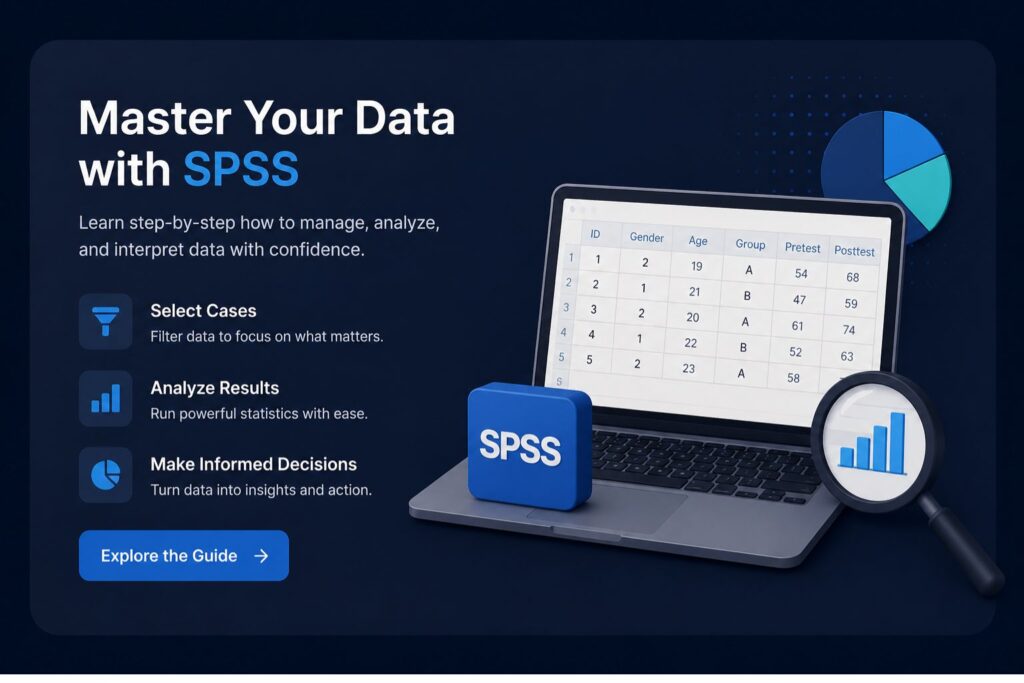
Knowing how to select cases in SPSS is important when you need to analyze only part of your dataset. You may want to analyze only female respondents, participants aged 18 and above, the treatment group, respondents with complete survey data, or cases that meet your dissertation inclusion criteria.
This step looks simple, but it can affect every table, p-value, sample size, and conclusion in your results chapter. If you apply the wrong filter, you may analyze the wrong subgroup and produce results that do not match your research questions.
SPSS Select Cases helps you include or exclude rows from analysis based on specific conditions. These conditions can be simple, such as selecting respondents where Gender = 2, or more advanced, such as selecting adults in the treatment group who completed both pretest and posttest measures.
For students who want full support with filtering, cleaning, analyzing, and reporting SPSS results, our SPSS data analysis help service can help you prepare accurate output and explain your findings clearly.
How Do You Select Cases in SPSS?
To select cases in SPSS, go to Data > Select Cases, choose If condition is satisfied, click If, enter your selection rule such as Gender = 2 or Age >= 18, then choose whether to filter, delete, or copy selected cases. The safest option for most students is Filter out unselected cases because it keeps the full dataset while allowing SPSS to analyze only selected cases.
Use Filter out unselected cases when you want a temporary filter. Use Copy selected cases to a new dataset when you need a separate subgroup dataset. Avoid Delete unselected cases unless you have saved a backup copy of your original file.
IBM’s SPSS documentation confirms that Select Cases can select subgroups using criteria such as variable values, ranges, date and time ranges, case numbers, arithmetic expressions, logical expressions, functions, and random samples.
What Does Select Cases Mean in SPSS?
Select Cases in SPSS means choosing which rows, also called cases, should be included in your analysis. Each row in SPSS usually represents one respondent, participant, patient, student, company, transaction, or observation.
When you select cases, SPSS analyzes only the rows that meet your chosen condition. The unselected cases can be filtered out temporarily, copied into a new dataset, or deleted from the active dataset depending on the option you choose.
You can use Select Cases to include:
- Female respondents only
- Participants aged 18 years and above
- Treatment group participants
- Respondents from one country, school, or hospital
- Cases with complete pretest and posttest data
- A random sample of cases
- Cases within a specific row range
- Respondents who meet more than one inclusion criterion
Select Cases is different from Split File, Weight Cases, Sort Cases, and Delete Cases.
| SPSS Function | What It Does | When to Use |
|---|---|---|
| Select Cases | Includes only selected rows in analysis | Analyze a subgroup |
| Split File | Runs output separately by group | Compare groups separately |
| Weight Cases | Gives cases different influence | Survey weighting |
| Sort Cases | Reorders rows | Organize data |
| Delete Cases | Removes rows from dataset | Permanent cleaning step |
Select Cases filters which rows are analyzed. Split File runs separate analyses for groups without removing them from the dataset structure. For example, if you want separate descriptive statistics for males and females, you may need how to split file in SPSS instead of Select Cases.
Select Cases vs SELECT IF in SPSS
Many students confuse Select Cases with the SELECT IF syntax command. They are related, but they are not always used the same way.
Select Cases is the menu-based tool found under Data > Select Cases. It allows you to filter, copy, or delete unselected cases depending on the option you choose.
SELECT IF is a syntax command used to select cases based on a condition. It is useful when you want a reproducible SPSS syntax record, but it permanently selects cases for analysis based on logical conditions, and unselected cases are deleted from the active dataset.
| Method | Best For | Risk Level |
|---|---|---|
| Select Cases with filter | Temporary subgroup analysis | Low |
| Select Cases with copy selected cases | Creating a subgroup dataset | Low to medium |
| Select Cases with delete unselected cases | Final cleaned datasets only | High |
| SELECT IF syntax | Reproducible syntax-based selection | Medium to high |
For most dissertation students, the safest option is to use Select Cases > Filter out unselected cases first. After checking the sample size and output, you can save a separate cleaned file if needed.
When Should You Select Cases in SPSS?
You should select cases in SPSS when your research question, inclusion criteria, exclusion criteria, or analysis plan requires only part of the dataset.
In dissertation research, this is common during data screening and statistical analysis. A nursing student may want to analyze only patients with complete blood pressure readings. A psychology student may want to select only adult participants. An education student may want to analyze only undergraduate respondents. A business student may want to analyze customers from one region only.
Common reasons for selecting cases in SPSS include:
- Analyzing only female or male participants
- Selecting respondents aged 18 years and above
- Selecting only the treatment group
- Excluding ineligible respondents
- Selecting complete survey responses
- Selecting students from one department or program
- Selecting patients from one hospital unit
- Selecting employees from one company branch
- Selecting respondents from one country or region
- Selecting cases within a date range
- Creating a random sample for pilot analysis
- Removing cases that do not meet inclusion criteria
- Selecting respondents who completed both pretest and posttest measures
For example, if your dissertation includes only adult participants, you may select cases where:
Age >= 18If your study compares pretest and posttest scores, you may select only respondents with both scores available:
NOT MISSING(Pretest) AND NOT MISSING(Posttest)Every case selection decision should be documented in your methodology, data screening, or results section. You should explain the original sample size, exclusion criteria, number of cases removed or filtered, and final analytic sample size.
Before You Select Cases: Important Checks
Before selecting cases in SPSS, check your data carefully. Many SPSS errors happen because students select the wrong value code, apply a filter before checking missing data, or forget that a previous filter is still active.
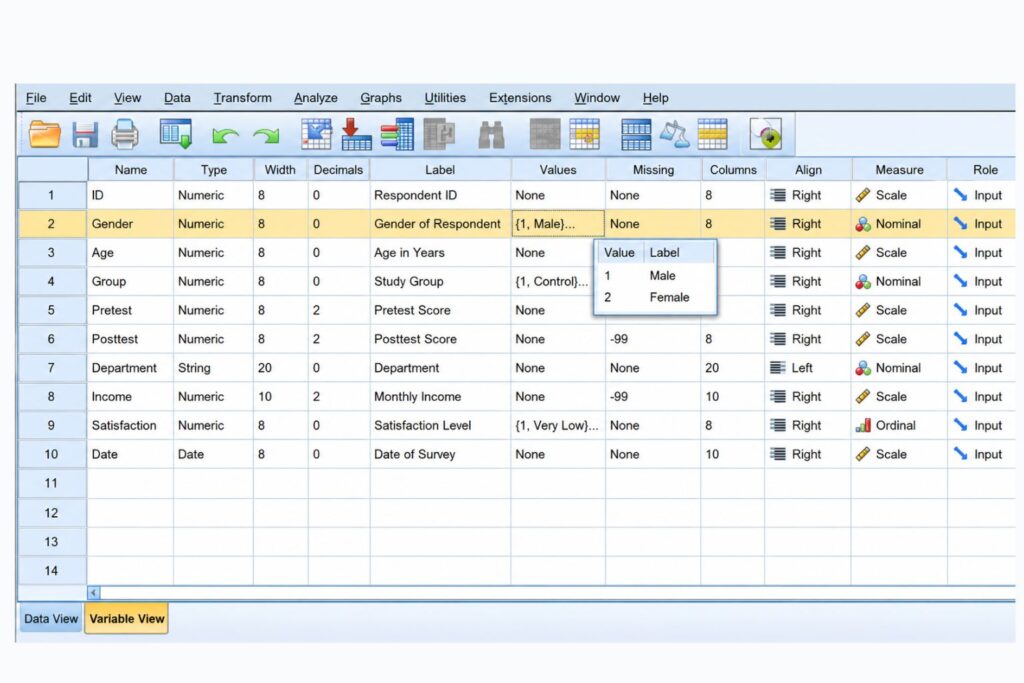
Start by checking Variable View. Confirm the variable name, label, value labels, missing value settings, and measurement level.
For example, your Gender variable may be coded as:
- 1 = Male
- 2 = Female
If you assume that 1 = Female when the dataset says 2 = Female, you will filter the wrong group.
You should also run Frequencies or Descriptives before applying a filter. This helps you understand how many cases are in each category before selecting a subgroup.
Use this checklist before selecting cases:
- Save a copy of your original SPSS file.
- Run Frequencies or Descriptives on the selection variable.
- Confirm value coding, such as 1 = Male and 2 = Female.
- Check whether your variable is numeric or string.
- Check missing values.
- Apply Select Cases.
- Run Frequencies again to confirm the correct cases are active.
- Check your final sample size.
- Record the selection rule for your dissertation methods section.
How to Select Cases in SPSS Using the Menu
The menu method is the easiest way for beginners to select cases in SPSS. It is useful when you want to apply a filter without writing syntax manually.
Follow these steps:
- Open your dataset in SPSS.
- Click Data on the top menu.
- Click Select Cases.
- Select If condition is satisfied.
- Click If.
- Move the variable you want to use into the condition box.
- Enter your selection rule.
- Click Continue.
- Choose whether to filter, delete, or copy selected cases.
- Click OK.
IBM also lists the menu path as Data > Select Cases and instructs users to choose a selection method and specify criteria.
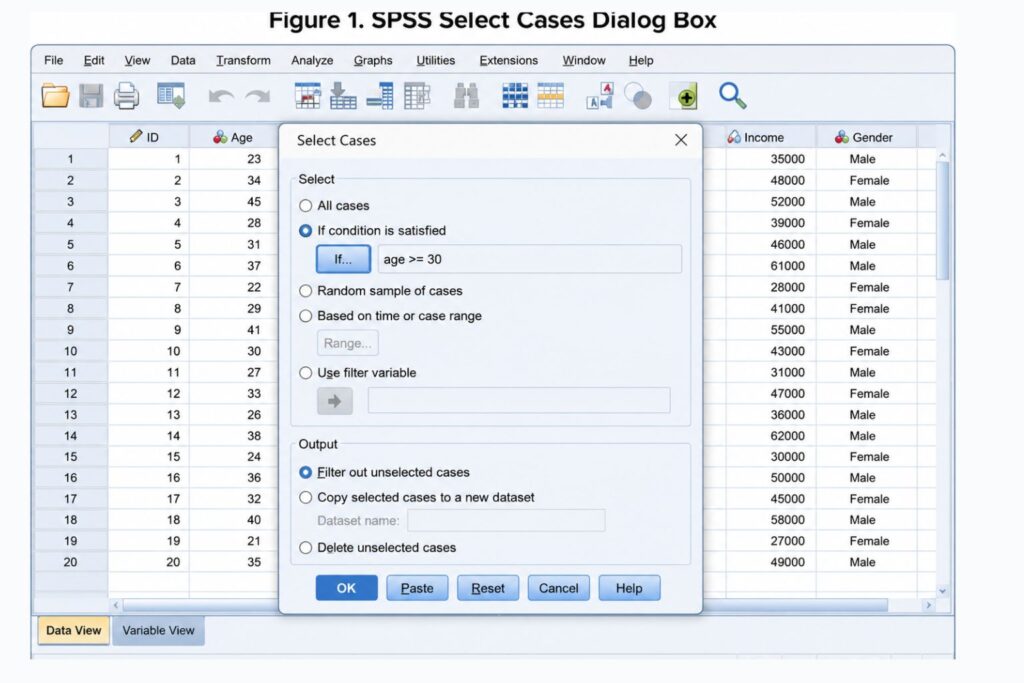
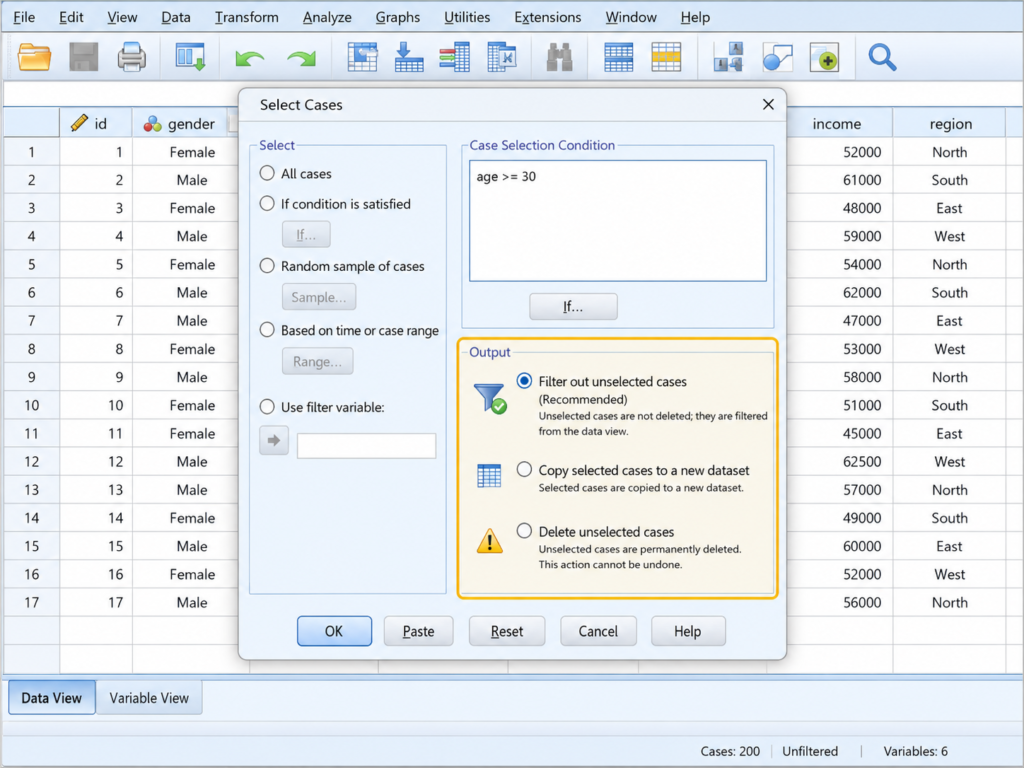
The Select Cases dialog box gives several options.
| Option | Meaning |
|---|---|
| All cases | SPSS uses the full dataset |
| If condition is satisfied | SPSS selects cases based on a rule |
| Random sample of cases | SPSS randomly selects cases |
| Based on time or case range | SPSS selects cases by row or time range |
| Use filter variable | SPSS uses an existing variable to filter cases |
You will also see three main output options.
| Output Option | What It Does |
|---|---|
| Filter out unselected cases | Keeps all cases but excludes unselected rows from analysis |
| Copy selected cases to a new dataset | Creates a new dataset with selected cases |
| Delete unselected cases | Removes unselected cases from the active dataset |
For most students, Filter out unselected cases is the safest option. It lets you analyze only selected cases without deleting the rest of your dataset.
How to Select Cases in SPSS Without Deleting Data
The safest way to select cases in SPSS without deleting data is to choose Filter out unselected cases. This keeps every row in the dataset but tells SPSS to analyze only the selected cases.
This is the best option when you are still checking your analysis, preparing output, or confirming your sample size. It protects your original data while allowing you to work with a subgroup.
Use this approach when:
- You are still learning SPSS
- You are testing a selection rule
- You do not want to lose original responses
- You need to switch between full-sample and subgroup analysis
- You want to avoid accidental deletion
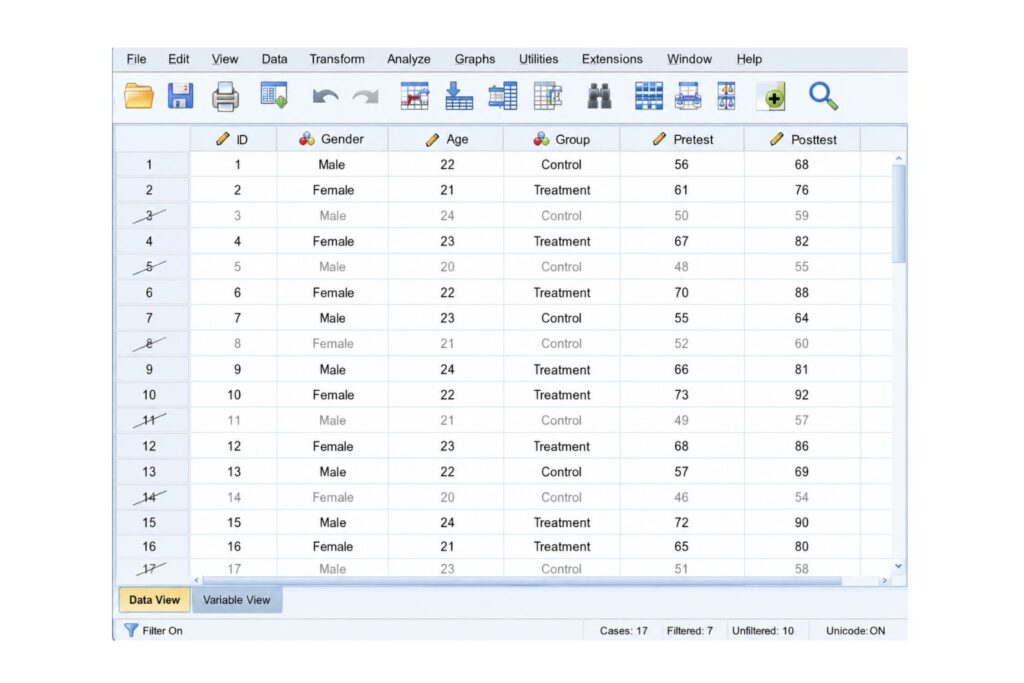
A filtered-out case remains in Data View but is excluded from analysis. In the Data Editor, IBM notes that filtered-out cases are indicated with a diagonal slash through the row number.
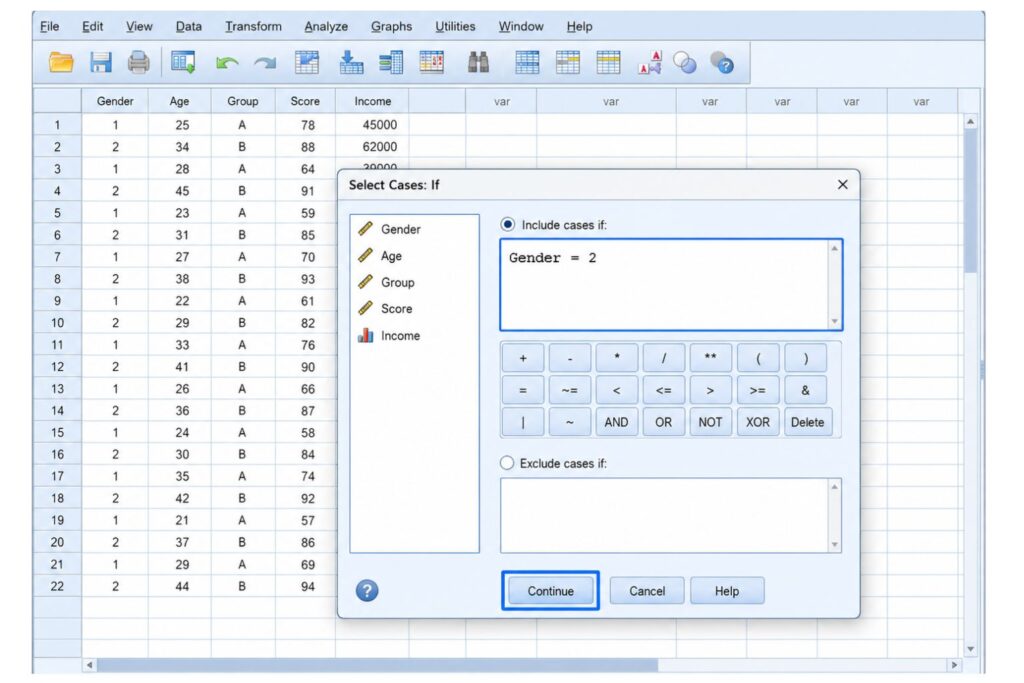
Example 1: Select Cases by Gender in SPSS
Suppose a student wants to analyze only female respondents. The variable is called Gender and is coded as:
- 1 = Male
- 2 = Female
The condition for selecting female respondents is:
Gender = 2Using the menu method, click Data > Select Cases > If condition is satisfied > If, then enter Gender = 2 in the condition box.
SPSS will create a filter variable, often named filter_$, and use that variable to decide which cases should be included in the analysis.
The syntax may look like this:
USE ALL.
COMPUTE filter_$=(Gender = 2).
VARIABLE LABELS filter_$ 'Gender = 2 (FILTER)'.
VALUE LABELS filter_$ 0 'Not Selected' 1 'Selected'.
FORMATS filter_$ (f1.0).
FILTER BY filter_$.
EXECUTE.
Here is what the syntax means.
| Syntax Line | Meaning |
|---|---|
USE ALL. | Starts with all cases before applying the filter |
COMPUTE filter_$=(Gender = 2). | Creates a filter variable where selected cases meet the rule |
VARIABLE LABELS filter_$ | Adds a label to the filter variable |
VALUE LABELS filter_$ | Labels 0 as Not Selected and 1 as Selected |
FILTER BY filter_$. | Tells SPSS to analyze only selected cases |
EXECUTE. | Runs the command |
After applying the filter, SPSS will analyze only respondents where Gender = 2. Unselected cases may still appear in Data View, but they will be excluded from analysis while the filter is active.
Example 2: Select Cases by Age Range in SPSS
You may need to select cases by age if your study includes eligibility criteria. For example, if your dissertation includes only adult respondents, you can select cases where age is 18 or above.
The condition is:
Age >= 18This tells SPSS to include only cases where the Age variable is greater than or equal to 18.
If you want to select respondents aged 18 to 35, use:
Age >= 18 AND Age <= 35This tells SPSS to include only respondents who meet both conditions. They must be at least 18 and not older than 35.
The syntax may look like this:
USE ALL.
COMPUTE filter_$=(Age >= 18 AND Age <= 35).
FILTER BY filter_$.
EXECUTE.
Age filtering is common in psychology, public health, education, and nursing dissertations where eligibility criteria depend on age. However, you should always report how many cases were excluded and why they were excluded.
Example 3: Select Cases from One Study Group
Many research datasets include a grouping variable. For example, a study may compare a control group and a treatment group.
Assume the variable is called Group and is coded as:
- 1 = Control group
- 2 = Treatment group
To select only the treatment group, use:
Group = 2This is useful when you want to run descriptive statistics for treatment-group participants only.
However, be careful. If your goal is to compare treatment and control groups, you usually should not filter out one group before running a group comparison test. Tests such as independent samples t-tests, chi-square tests, ANOVA, and regression models with group predictors usually require both groups to remain in the dataset.
For example, if you are running an independent samples t-test in SPSS,, SPSS needs both groups so it can compare their means.
Example 4: Select Complete Cases in SPSS
Sometimes you may need to select only cases with complete data for key variables. This is common in dissertation data screening, especially before paired samples t-tests, repeated measures analysis, correlation, regression, or pretest-posttest analysis.
For example, if your study requires both pretest and posttest scores, the condition may be:
NOT MISSING(Pretest) AND NOT MISSING(Posttest)If your analysis requires Age, Gender, and Outcome to be complete, use:
NOT MISSING(Age) AND NOT MISSING(Gender) AND NOT MISSING(Outcome)This tells SPSS to include only cases where all listed variables have valid data.
Complete-case filtering can improve consistency in analysis, but it can also reduce your sample size. If missing data are not random, complete-case analysis can introduce bias. For that reason, you should report how many cases were removed or excluded due to missing data.
A dissertation reporting sentence may look like this:
“Cases with missing values on the primary outcome variable were excluded before analysis. The original dataset contained 210 responses, and 184 complete cases remained for the final analysis.”
Example 5: Select Cases Using Multiple Conditions
SPSS allows you to select cases using more than one condition. This is useful when your research question requires a specific subgroup.
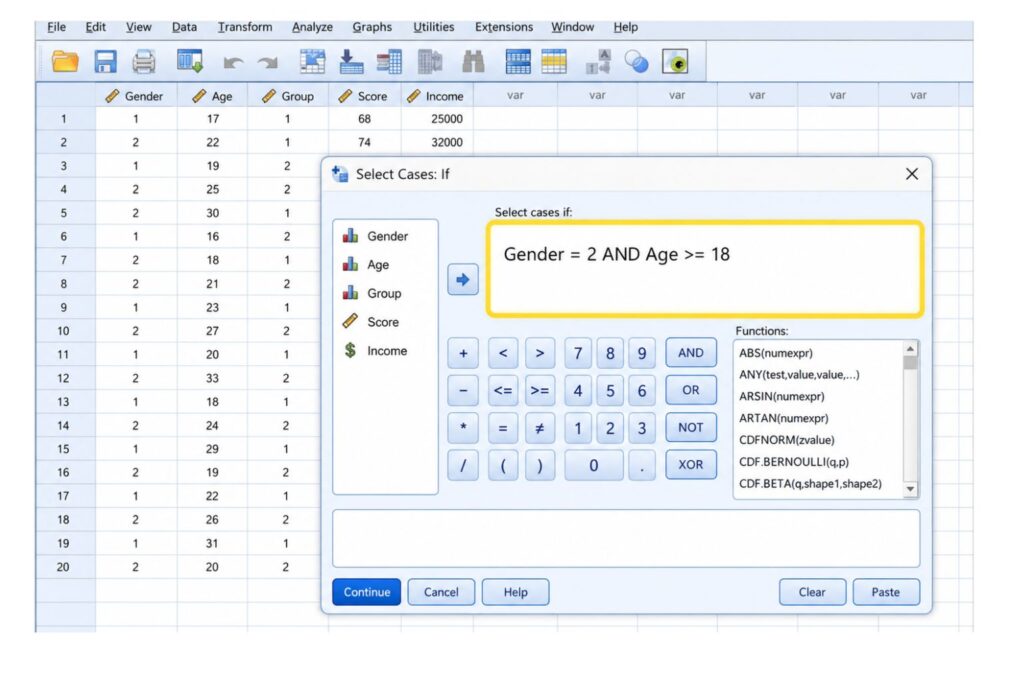
For example, to select female respondents aged 18 and above, use:
Gender = 2 AND Age >= 18This means a case must satisfy both conditions. The respondent must be female and at least 18 years old.
To select respondents from either group 1 or group 2, use:
Group = 1 OR Group = 2This means the respondent can belong to either group.
To select adult treatment-group participants, use:
Age >= 18 AND Group = 2The difference between AND and OR is important.
| Operator | Meaning | Example |
|---|---|---|
| AND | All conditions must be true | Female and aged 18+ |
| OR | At least one condition must be true | Group 1 or Group 2 |
Many students make mistakes with AND and OR. For example, if one variable has values 1, 2, 3, and 4, this condition is wrong:
Group = 1 AND Group = 2A single case cannot be both Group 1 and Group 2 at the same time. The correct condition would usually be:
Group = 1 OR Group = 2IBM gives the same warning in its Select Cases support guidance: using AND between mutually exclusive values such as var=1 AND var=2 leaves cases unselected because one case cannot equal both values at once.
How to Select a Random Sample of Cases in SPSS
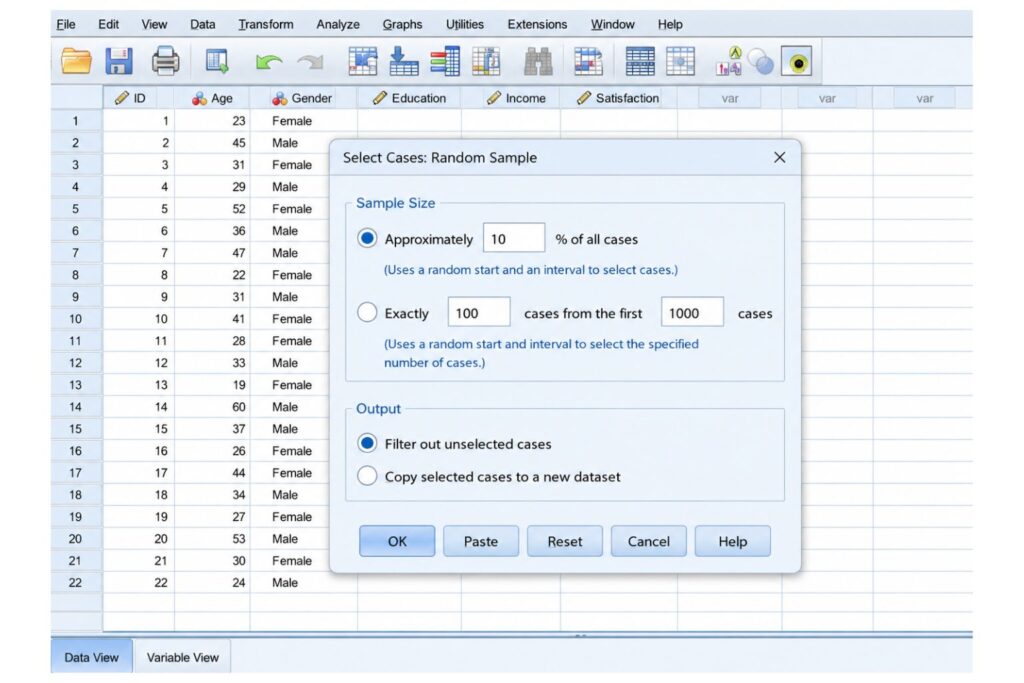
SPSS can also select a random sample of cases. This is useful when you want to test syntax, run pilot analysis, reduce a very large dataset, or create a smaller working sample.
To select a random sample in SPSS:
- Click Data.
- Click Select Cases.
- Select Random sample of cases.
- Click Sample.
- Choose an approximate percentage or exact number of cases.
- Click Continue.
- Choose whether to filter or copy selected cases.
- Click OK.
You may choose an approximate percentage, such as 10% of all cases, or an exact number, such as 100 cases from the first 1,000 cases.
Random sampling should not be used casually in dissertation analysis. Only use it when your research design supports it or when you are testing procedures before final analysis. If your dissertation requires analysis of all eligible respondents, randomly excluding cases may weaken your study.
How to Select Cases by Case Number or Range
You can also select cases based on case number, row range, or time range. This is less common in dissertation analysis than variable-based selection, but it can be useful in some situations.
For example, you may want to select:
- The first 100 imported records
- Cases 1 through 50
- Pilot records entered before the main dataset
- Cases from a specific time period
- A batch of records imported from one source
Case-range selection can help with data checking, pilot testing, and reviewing imported records. However, it should not replace proper inclusion and exclusion criteria. In most dissertation datasets, it is better to select cases based on variables such as age, group, completion status, or eligibility criteria.
Filter Out vs Delete Unselected Cases vs Copy Selected Cases
This is one of the most important parts of selecting cases in SPSS. The option you choose determines whether your original dataset remains intact.
Filter Out Unselected Cases
Filtering out unselected cases keeps all rows in the dataset but excludes some rows from analysis. This is usually the safest option.
When a filter is active, SPSS analyzes only selected cases. Unselected cases may appear with diagonal slashes through the row numbers in Data View.
Use this option when:
- You want a temporary filter
- You do not want to delete data
- You are still checking your analysis
- You need to turn the filter on and off
- You want to preserve the original dataset
Delete Unselected Cases
Deleting unselected cases removes them from the active dataset. This option is risky because it can permanently remove data if you save over the original file.
Use this option only if:
- You have saved a backup copy
- You are creating a final cleaned dataset
- You are certain the excluded cases should not remain
- You have documented the exclusion criteria
Students should avoid deleting unselected cases during early data screening.
Copy Selected Cases to a New Dataset
Copying selected cases creates a separate dataset containing only the selected cases. This is safer than deleting because it allows you to keep your original dataset.
Use this option when:
- You want a separate subgroup dataset
- You need to send only selected cases for review
- You want to preserve the original file
- You are creating a dataset for a specific analysis
| Option | Permanent? | Best For | Risk Level |
|---|---|---|---|
| Filter out unselected cases | No | Most student analyses | Low |
| Delete unselected cases | Yes | Final cleaned datasets only | High |
| Copy selected cases | No, if original is saved | Creating subgroup files | Low to medium |
For most dissertation students, filtering is the best first choice.
How to Know Whether Your SPSS Filter Worked
After selecting cases, you should confirm that SPSS applied the filter correctly. Do not assume the filter worked just because you clicked OK.
Check for these signs:
- Diagonal slashes through unselected row numbers in Data View
- A filter variable such as
filter_$ - Output showing a smaller valid N
- Frequencies showing the selected group only
- SPSS status showing that a filter is active
- Expected sample size after filtering
For example:
“Before filtering, the dataset contained 250 cases. After selecting Gender = 2, SPSS included 142 cases in the analysis and filtered out 108 cases.”
You can also run Frequencies on the filter variable. Selected cases are usually coded as 1, and unselected cases are coded as 0.
If your output shows fewer cases than expected, check whether another filter is still active. Forgetting to turn off Select Cases is one of the most common SPSS mistakes.
How to Turn Off Select Cases in SPSS
You must turn off Select Cases when you want SPSS to analyze the full dataset again.
To turn off Select Cases using the menu:
- Click Data.
- Click Select Cases.
- Choose All cases.
- Click OK.
You can also turn off the filter using syntax:
FILTER OFF.
USE ALL.
EXECUTE.
After turning off the filter, run Frequencies or Descriptives again to confirm that SPSS is using the full dataset.
This step is very important. If you forget to turn off the filter, later analyses may use only a subgroup of cases, which can produce incorrect results.
SPSS SELECT IF Command: Syntax Method
SPSS syntax is useful because it creates a written record of your data selection rule. This helps with reproducibility, dissertation documentation, and error checking.
The SELECT IF command selects cases based on a logical condition.
For example, to select female respondents:
SELECT IF (Gender = 2).
EXECUTE.
To select adults:
SELECT IF (Age >= 18).
EXECUTE.
To select adult treatment-group participants:
SELECT IF (Group = 2 AND Age >= 18).
EXECUTE.
However, students must understand the difference between FILTER BY and SELECT IF.
| Command | What It Does | Risk |
|---|---|---|
FILTER BY | Temporarily excludes cases from analysis | Lower risk |
SELECT IF | Selects cases and can remove unselected cases from the active dataset | Higher risk |
Use FILTER BY when you want a temporary filter. Use SELECT IF only when you understand that unselected cases may be removed from the active working dataset if you save the file afterward.
For most dissertation students, the safer approach is to filter cases first, check the results, then save a separate cleaned file only when you are certain the selection rule is correct.
Common SPSS Select Cases Mistakes
Selecting cases in SPSS is simple, but small mistakes can create serious analysis problems.
Mistake 1: Using the Wrong Value Code
A common mistake is selecting the wrong category. For example, if Gender is coded as 1 = Male and 2 = Female, using Gender = 1 will select males, not females.
Always check Variable View before filtering.
Mistake 2: Forgetting the Filter Is Still On
If a filter remains active, SPSS continues analyzing only selected cases. This can make later outputs look incorrect.
For example, your regression output may show N = 80 instead of N = 200 because a previous filter is still active.
Mistake 3: Deleting Unselected Cases Without a Backup
Deleting unselected cases can permanently remove data from the active file. Always save a backup before using this option.
Mistake 4: Confusing Select Cases with Split File
Select Cases filters rows. Split File runs analyses separately by group. If you want output for each group, Split File may be more appropriate.
Mistake 5: Using OR When AND Is Needed
If you want respondents who are female and aged 18 or above, use:
Gender = 2 AND Age >= 18Do not use OR unless either condition is acceptable.
Mistake 6: Filtering Before Checking Missing Data
If you filter before checking missing values, your sample size may change unexpectedly. Always inspect missing data before and after filtering.
Mistake 7: Selecting One Group Before Running Group Comparison Tests
If you filter out one group before running a comparison test, SPSS may not have both groups available for analysis.
For example, a chi-square test in SPSS usually requires categories from both variables. Filtering out one comparison group may make the test invalid or impossible to run.
Need SPSS Help Before You Submit?
A case-selection error can affect your entire results chapter. If your output has the wrong sample size, missing groups, crossed-out cases, or confusing syntax, our SPSS help service can review your dataset and help you correct the issue before you submit your work.
How to Report Case Selection in a Dissertation
You should report case selection decisions clearly in your dissertation, thesis, or research report. Readers need to know how the final analytic sample was created.
Your report should mention:
- Original sample size
- Inclusion criteria
- Exclusion criteria
- Number of cases removed or filtered
- Final analytic sample size
- Whether missing data were excluded
- Whether filtering, deletion, or complete-case analysis was used
Sample wording:
“Cases were selected in IBM SPSS Statistics using the Select Cases function. Only respondents who met the inclusion criteria and had complete data for the main study variables were included in the final analysis. The original dataset contained 250 responses, and 218 cases remained after applying the selection criteria.”
Another example:
“Participants younger than 18 years were excluded before analysis. The final analytic sample included 196 adult respondents.”
For missing data:
“Cases with missing values on the dependent variable were excluded from the final regression analysis. The final model was estimated using 174 complete cases.”
Clear reporting improves transparency and helps your supervisor or committee understand how your results were produced.
Best Practices for Selecting Cases in SPSS
Use these best practices to avoid errors:
- Keep an original backup file.
- Use filtering instead of deletion when possible.
- Check value labels before filtering.
- Run Frequencies before and after selecting cases.
- Use syntax for reproducibility.
- Document your selection criteria.
- Check N before and after filtering.
- Turn the filter off when finished.
- Avoid filtering one group before comparison tests.
- Use Copy Selected Cases when creating subgroup datasets.
- Record the final analytic sample size.
- Ask for expert help if case selection affects your dissertation results.
Good SPSS practice is not only about clicking the right menu option. It is about making sure the selected cases match your research question, methodology, and statistical test.
Need Help Selecting Cases or Filtering Data in SPSS?
Selecting cases sounds simple, but it can affect every result in your dissertation. A wrong filter can change your sample size, remove valid respondents, exclude comparison groups, or produce inaccurate statistical results.
At SPSS Dissertation Help, we assist students with:
- Selecting cases correctly
- Filtering participants by inclusion and exclusion criteria
- Cleaning dissertation datasets
- Handling missing data
- Checking sample size before analysis
- Running descriptive statistics
- Running inferential statistics
- Writing SPSS results
- Creating SPSS tables and figures
- Explaining SPSS syntax and output
- Checking whether the correct sample was analyzed
You can request SPSS data analysis help if you need support with cleaning, filtering, analyzing, and reporting your dataset.
For advanced dissertation projects, our SPSS dissertation statistical data analysis help service can support your full analysis process, from data screening to final results interpretation.
If you are stuck with filters, syntax, output errors, or sample-size problems, our SPSS help service can help you correct the issue before it affects your final report.
Students working on coursework, practice datasets, or class projects can also use our SPSS assignment help service.
Our support is confidential, student-focused, and tailored to your dataset, research questions, and university requirements. We can help you verify your filtering rules, check your final sample size, produce accurate SPSS output, and explain the results clearly.
Our pricing depends on the size of your dataset, number of variables, complexity of the analysis, deadline, and whether you need only SPSS output or a full written results section. You can request a quote and receive clear pricing before work begins.
Request a quote now for expert SPSS data analysis help.
Frequently Asked Questions About Selecting Cases in SPSS
Select Cases allows SPSS users to analyze only part of a dataset. You can select cases based on variable values, conditions, ranges, row numbers, filter variables, or random samples.
Go to Data > Select Cases > If condition is satisfied > If, then enter a condition such as Gender = 2, Age >= 18, or Group = 1. Choose whether to filter, delete, or copy selected cases, then click OK.
Use logical operators such as AND or OR. For example, Gender = 2 AND Age >= 18 selects female respondents aged 18 and above. Both conditions must be true because AND is used.
A filter temporarily excludes unselected cases from analysis while keeping them in the dataset. SELECT IF can remove unselected cases from the active dataset if the file is saved after the command is executed.
Select Cases does not have to delete data. If you choose Filter out unselected cases, SPSS keeps all cases and only excludes some from analysis. If you choose Delete unselected cases, SPSS removes unselected rows from the active dataset.
Go to Data > Select Cases, choose All cases, then click OK. You can also use the syntax FILTER OFF. USE ALL. EXECUTE. to turn off the filter.
Your analysis may show a smaller sample size because a filter is active, missing values are excluded, or your selection rule removed some cases. Check whether row numbers are crossed out and run Frequencies on the filter variable.
Yes. You can use conditions such as NOT MISSING(Pretest) AND NOT MISSING(Posttest) to select only complete cases for specific variables. However, report how many cases were excluded due to missing data.
Usually no. If you are comparing two groups, both groups should remain in the dataset. Filtering one group may prevent SPSS from running the test correctly or may produce the wrong analysis.
Report the original sample size, selection criteria, number of excluded cases, final sample size, and reason for filtering. For example, “The original dataset contained 250 responses, and 218 cases remained after applying inclusion criteria.”
The filter_$ variable is created by SPSS when you apply Select Cases using a filter. Cases coded 1 are selected for analysis, while cases coded 0 are filtered out.
Crossed-out or slashed row numbers indicate that those cases are filtered out. They remain in the dataset but are excluded from analysis while the filter is active.
Conclusion
Learning how to select cases in SPSS helps you analyze the correct subgroup, apply inclusion criteria, exclude ineligible cases, handle complete-case analysis, and prepare accurate dissertation results.
The safest approach is to save a backup, check value labels, run Frequencies before filtering, use Filter out unselected cases when possible, confirm your final sample size, and document the selection rule in your dissertation.
If you need help checking your SPSS filters, cleaning your dataset, running analyses, or writing your results section, request SPSS data analysis help today.