Exporting SPSS output to Word sounds simple until the table becomes too wide, the chart looks blurry, the file opens as RTF instead of DOCX, or your dissertation chapter becomes filled with unedited raw output. Many students can run analyses in SPSS, but they struggle when they need to move the results into Microsoft Word for Chapter 4, a thesis, dissertation, research report, or journal-style assignment.
This guide explains how to export SPSS output to Word step by step. It also shows how to copy SPSS tables and charts, choose between full output and selected output, fix formatting problems, and prepare clean APA-style results for academic writing.
For students who need more than exporting, our SPSS dissertation help team can help with SPSS analysis, output cleaning, APA table formatting, results interpretation, and Chapter 4 presentation.
How Do You Export SPSS Output to Word?
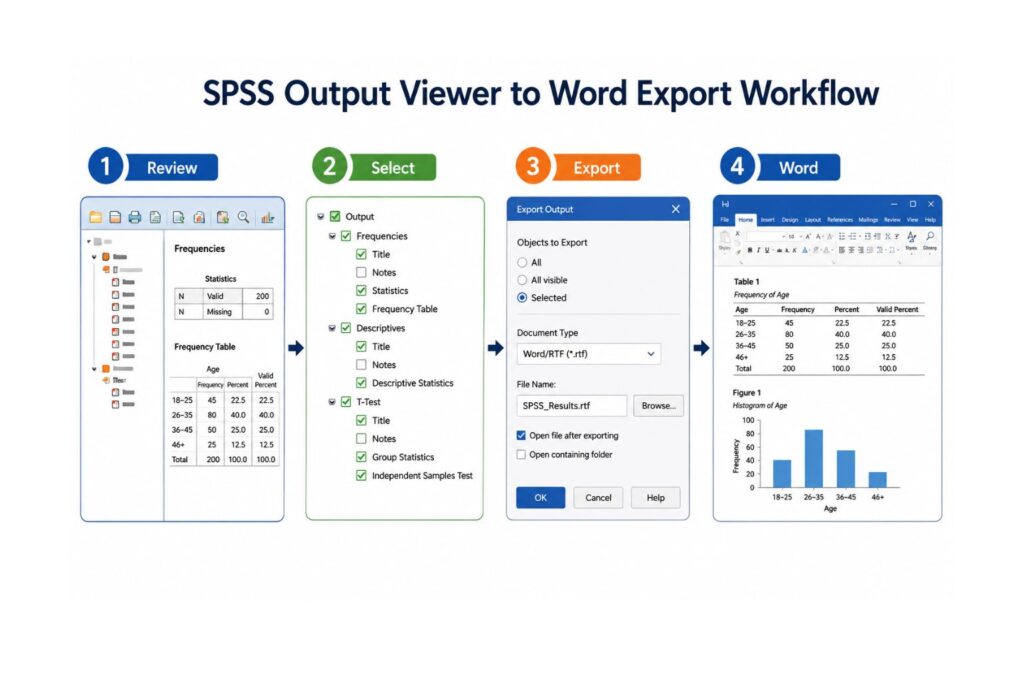
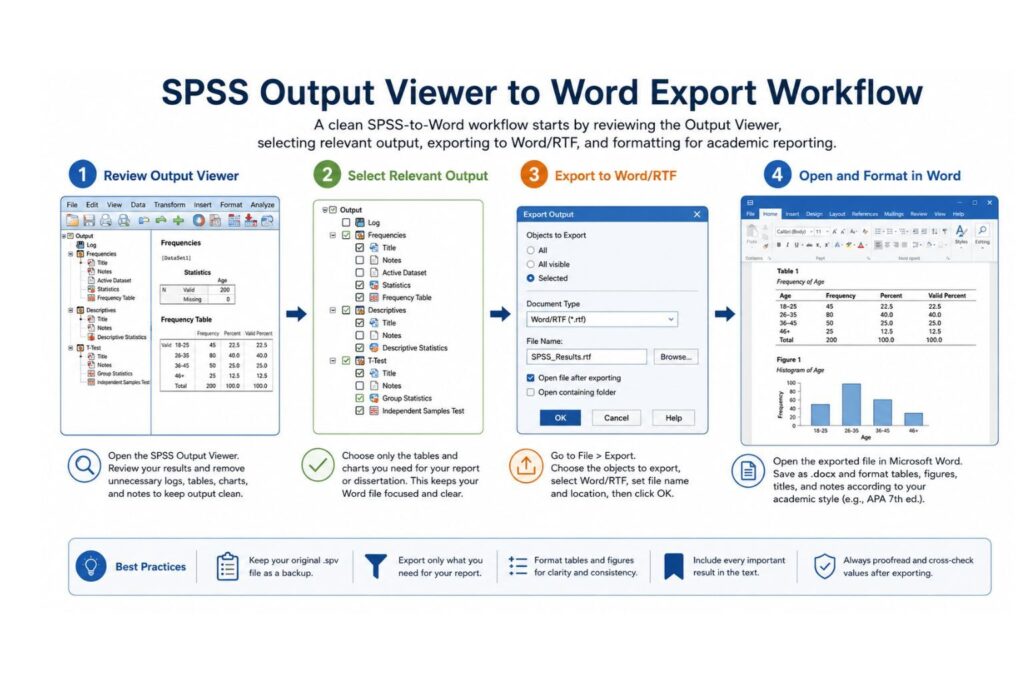
To export SPSS output to Word, open the SPSS Output Viewer, click File > Export, choose whether to export all output or selected output, select Word/RTF or the available Word format, choose a file location, and click OK. After the file opens in Microsoft Word, save it as .docx so you can edit, format, and include the results in your dissertation or report.
For dissertation writing, it is usually better to export only the tables and charts that answer your research questions. Full raw SPSS output should be saved separately as an appendix or analysis record, not pasted directly into Chapter 4.
What Is SPSS Output?
SPSS output is the set of results produced after running an analysis in IBM SPSS Statistics. These results appear in the SPSS Output Viewer, which displays the tables, charts, warnings, notes, logs, and statistical results created by your analysis.
The Output Viewer usually contains two main parts. The left side shows the output outline. The right side displays the actual results, such as frequency tables, descriptive statistics, t-test results, ANOVA tables, correlation matrices, regression coefficients, model summaries, charts, and syntax logs.
Before exporting SPSS output to Word, clean the Output Viewer. Delete failed analyses, duplicate tables, old results, unnecessary charts, logs, and notes that do not belong in the final document.
A clean Output Viewer makes exporting easier. It also helps you prepare a stronger dissertation results chapter because you only move useful results into Word.
Why Export SPSS Output to Word?
Most students export SPSS output to Word because they need to include results in a dissertation, thesis, report, manuscript, or class assignment. Word is easier for writing because you can add interpretation, format tables, insert figure captions, and organize findings under research questions.
Exporting output also helps you keep a record of your analysis. You can save full output for your appendix, supervisor, statistician, or personal documentation.
However, exported SPSS output should not be treated as a final results chapter. SPSS gives raw statistical output. Your job is to select, clean, format, and explain the results. That is why knowing how to export output is useful, but knowing how to prepare it for academic presentation is even more important.
For help with the analysis side, visit our SPSS data analysis help page.
Best Method: Export SPSS Output Directly to Word
The easiest way to export SPSS output to Word is through the export function in the SPSS Output Viewer. IBM’s official SPSS documentation explains that output can be exported in formats such as Word/RTF, Excel, PDF, HTML, and text, depending on the version and output type. See IBM’s guide on exporting SPSS output.
Follow these steps:
- Open your SPSS output file.
- Go to the Output Viewer window.
- Review the output and remove unnecessary tables, logs, and charts.
- Click File.
- Select Export.
- Choose the output objects you want to export.
- Select All, All visible, or Selected.
- Choose Word/RTF or the available Word format.
- Choose the save location.
- Enter a clear file name.
- Click OK.
- Open the exported file in Microsoft Word.
- Save the file as .docx if Word opens it as RTF or an older Word-compatible file.
Some SPSS versions export Word output as RTF rather than modern DOCX. This is normal. Open the exported file in Word, then use File > Save As > Word Document (.docx).
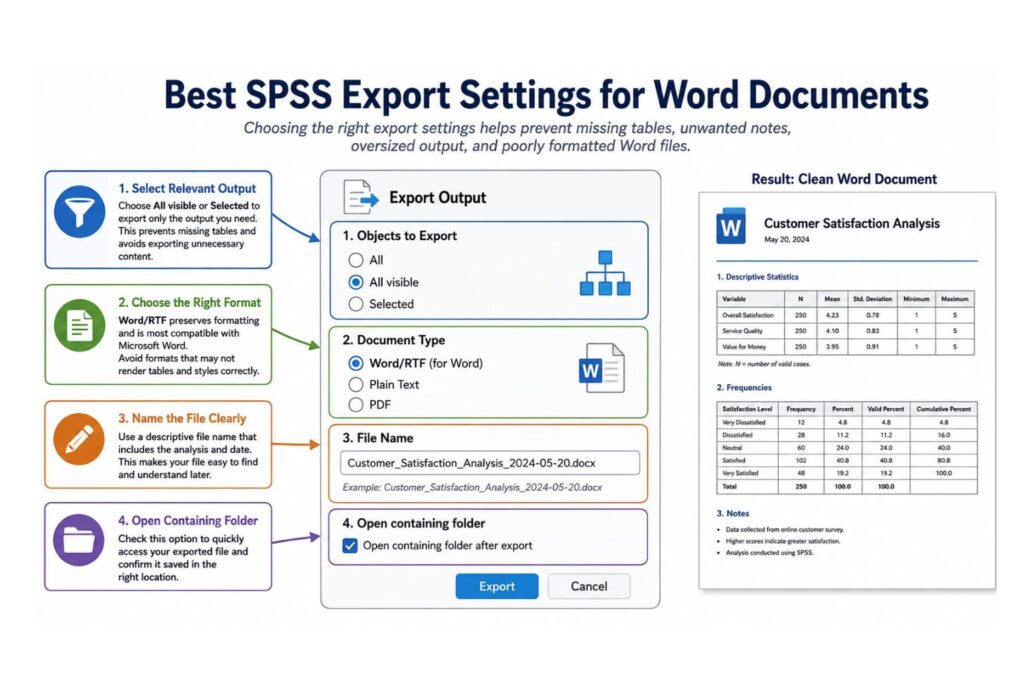
Export All Output vs Selected Output
SPSS gives different export choices. The right option depends on whether you need a full analysis record or only selected results for a report.
Use All when you need a complete record of everything SPSS produced. This is useful for appendices, supervisor review, audit trails, or statistical verification.
Use All visible when you have hidden or removed unnecessary output and want to export only what remains visible.
Use Selected when you only need specific tables or charts. This is usually the best option for dissertation writing because Chapter 4 should not include every SPSS table.
For example, if you run regression analysis, your dissertation may only need the model summary, ANOVA table, coefficients table, and selected assumption checks. You do not need every warning, log, chart, or unused diagnostic table.
For help deciding which tables matter, read our guide on how to interpret SPSS output.
Table 1: SPSS-to-Word Transfer Methods Compared
| Method | Best For | Editable in Word? | Main Advantage | Main Limitation |
|---|---|---|---|---|
| Export full output | Saving a complete analysis record | Partly | Keeps all output in one file | Often too long for Chapter 4 |
| Export selected output | Moving only relevant tables and charts | Partly | Produces a cleaner Word file | Requires selecting output first |
| Copy and paste | Moving one table quickly | Usually | Fast and simple | Formatting may change |
| Copy Special as formatted text | Dissertation tables | Yes | Easier APA editing | May require cleanup |
| Copy Special as picture | Charts or fixed-layout tables | No | Preserves visual appearance | Values and labels cannot be edited |
| Export to PDF instead | Final sharing or appendices | No | Preserves layout | Not suitable for editing |
How to Copy SPSS Tables to Word
Exporting is useful when you need several output items, but copying is better when you only need one or two tables. Copying selected SPSS tables gives you better control over what appears in your dissertation or report.
To copy an SPSS table to Word:
- Click the table in the SPSS Output Viewer.
- Right-click the selected table.
- Choose Copy or Copy Special.
- Open your Word document.
- Place the cursor where the table should appear.
- Paste the table.
- Use Word’s paste options to adjust the formatting.
The normal Copy option is quick, but it may not always preserve the best formatting. Copy Special gives more control because it may allow you to paste the table as formatted text, unformatted text, a picture, or another available format.
For dissertation writing, editable tables are usually better than images. Editable tables allow you to adjust table titles, remove unnecessary columns, align values, standardize decimal places, and apply APA formatting.
How to Copy SPSS Charts to Word
Charts should be handled differently from tables. Tables usually need to remain editable, but charts are often better pasted or exported as graphics.
To copy an SPSS chart to Word:
- Click the chart in the Output Viewer.
- Right-click the chart.
- Select Copy or Copy Special.
- Open Microsoft Word.
- Paste the chart where it belongs.
- Resize from the corner handles only.
- Add a figure number and title.
- Check that axis labels, legends, and data labels remain readable.
Avoid stretching charts sideways or vertically because this distorts the image. If a chart becomes blurry, copy it again using a higher-quality option, export it separately as an image, or recreate the chart in another tool if required.
Do not include charts only because SPSS produced them. Use charts when they help readers understand a distribution, comparison, trend, or relationship more clearly than a table.
Exporting SPSS Output for APA 7th Edition Reporting
Exporting SPSS output to Word is not the same as preparing APA results. Raw SPSS output is often too crowded, technical, and detailed for a dissertation or manuscript.
APA guidance explains that tables and figures should present information clearly and efficiently. That means SPSS tables often need editing before they are placed in the final document. You can review official APA tables and figures guidance for table and figure presentation principles.
When preparing SPSS output for APA 7th edition reporting:
- remove unnecessary columns;
- use clear table numbers and titles;
- keep decimal places consistent;
- report only relevant statistics;
- avoid screenshots of tables unless necessary;
- remove excessive borders and gridlines;
- define abbreviations in table notes;
- discuss every important table in the text;
- avoid dumping raw SPSS output into Chapter 4.
For example, a raw SPSS correlation table may include repeated values, significance rows, and sample size rows for every variable pair. In APA format, you can often simplify this into a clean correlation matrix with variable names, correlation coefficients, significance markers, and a short note.
For full formatting support, see our guide on how to report SPSS results in APA format.
Table 2: Best Export Format by SPSS Output Type
| SPSS Output Type | Recommended Word Method | Why It Works | Dissertation/APA Tip |
|---|---|---|---|
| Frequency tables | Copy Special as editable text | Easy to clean categories and percentages | Report only relevant categories |
| Descriptive statistics | Copy or export selected table | Keeps means and standard deviations together | Use consistent decimal places |
| t-test output | Export selected tables | Keeps group and test results organized | Report group means and test statistic |
| ANOVA output | Export selected tables | Keeps ANOVA and descriptive output together | Include post hoc results when needed |
| Regression output | Copy selected model tables | Avoids unnecessary diagnostic output | Focus on model summary and coefficients |
| Charts and graphs | Copy or export as picture | Preserves visual layout | Ensure figure labels are readable |
| Syntax and log notes | Do not include in main chapter | Usually not needed by readers | Store in appendix if required |
| Large tables | Export selected or use landscape page | Prevents broken layout | Move very large tables to appendix |
Common Problems When Exporting SPSS Output to Word
SPSS output can look clean in the Viewer but become messy after export. Most problems happen because tables are too wide, charts are copied at low quality, too much output is exported, or Word changes the layout.
If your table is too wide, do not immediately reduce the font until it becomes unreadable. First, try landscape orientation, narrower margins, shorter labels, fewer columns, or appendix placement.
If your output includes repeated group tables, check whether Split File is still active. Split File creates separate output for each group. This is useful when intended but confusing when left on accidentally. See our guide on how to split file in SPSS for more details.
If your chart is blurry, paste it again using a better format or export it separately as an image. Avoid enlarging a small pasted image because this reduces quality.
If your Word file is too large, export only selected output instead of the full Viewer. Keep the full SPSS output separately as an .spv backup.
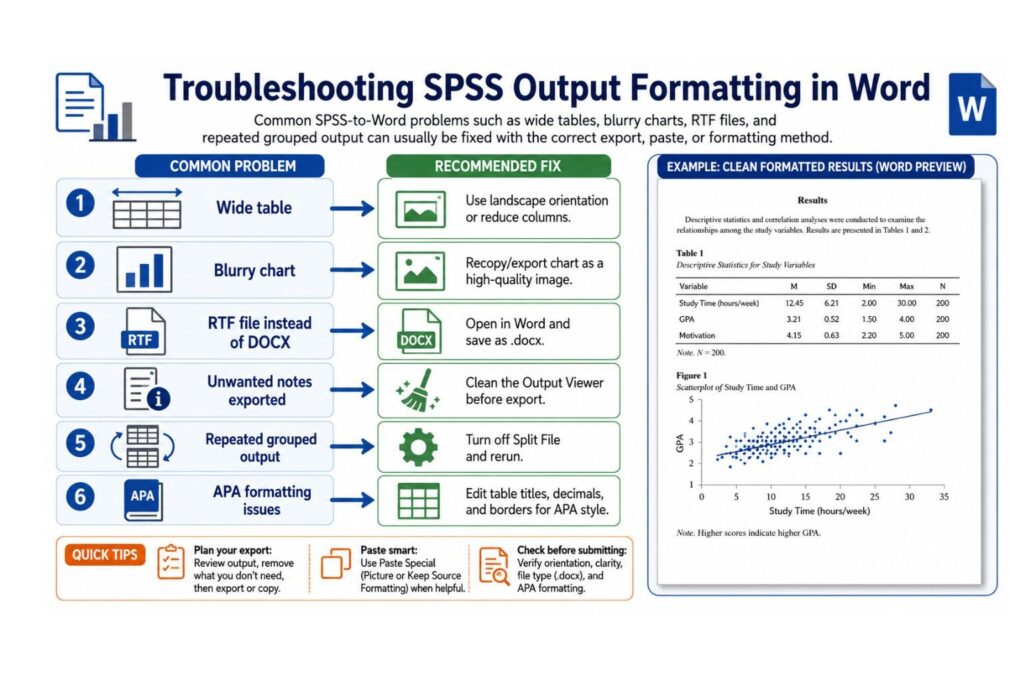
Table 3: Common SPSS-to-Word Problems and Fixes
| Problem | Likely Cause | Quick Fix | Best Prevention |
|---|---|---|---|
| Table too wide | Too many columns or long labels | Use landscape orientation or reduce columns | Clean the table before export |
| Blurry chart | Chart pasted at low resolution | Recopy or export as a graphic | Use high-quality chart export |
| Output pasted as image | Wrong paste format selected | Use Copy Special as formatted text | Choose editable format for tables |
| RTF file instead of DOCX | SPSS exported Word/RTF format | Open in Word and save as .docx | Save a final Word copy immediately |
| Unwanted notes exported | Viewer was not cleaned first | Delete notes and export again | Review output before exporting |
| Repeated group output | Split File is still active | Turn off Split File and rerun analysis | Check Data > Split File before analysis |
| Missing selected output option | No output item selected | Click the table or chart first | Select output before opening Export |
| Word file too large | Too many charts or full raw output exported | Export selected output only | Keep full output separately as .spv |
How to Format SPSS Output in Word After Exporting
After exporting SPSS output to Word, do not submit the document immediately. Formatting is part of the results-writing process.
Start by saving the exported file as DOCX. Then check the margins, font, spacing, table width, page orientation, and figure placement.
Use clear table numbers such as Table 1, Table 2, and Table 3. Add meaningful titles that explain what each table shows. Avoid relying on default SPSS titles such as “Coefficients,” “Correlations,” or “Model Summary” without context.
For example, instead of using the default SPSS title “Coefficients,” use a clearer dissertation title:
Table 4
Multiple Regression Predicting Academic Performance from Study Time and Attendance
Also check whether your tables need landscape orientation. Wide regression, ANOVA, or post hoc tables may not fit well on a portrait page. If a table is too large for the main chapter, place the full version in the appendix and summarize the key result in the main text.
How to Export SPSS Output for Chapter 4
Chapter 4 is not a place to paste every SPSS table. It is the results chapter of your dissertation, which means it should present findings clearly, logically, and according to your research questions or hypotheses.
A strong Chapter 4 usually begins with descriptive statistics, then moves to assumption tests where required, and then presents inferential results such as t-tests, ANOVA, correlation, chi-square, logistic regression, or multiple regression.
When exporting SPSS output for Chapter 4:
- export only tables that answer your research questions;
- keep raw SPSS output separately;
- use appendices for full output if required;
- rewrite table titles in academic language;
- present descriptive statistics before inferential results;
- avoid unnecessary logs and warnings;
- explain the meaning of every key result;
- make sure your interpretation matches the table values.
For example, if your research question asks whether stress is related to academic performance, your main Chapter 4 output may include descriptive statistics and a correlation table. You do not need to paste every SPSS log, syntax note, or unused chart.
For complete results support, see our Chapter 4 data analysis help service.
Exporting SPSS Output to Word, PDF, Excel, or PowerPoint
Word is usually the best export format for dissertations, theses, manuscripts, and research reports because it allows editing and integration with written interpretation.
PDF is better when you want to preserve layout for final sharing. Excel is useful when you want to continue editing or reorganizing table values. PowerPoint is useful when preparing presentations.
Use Word when your goal is writing. Use PDF when your goal is final sharing. Use Excel when your goal is further table editing. Use PowerPoint when your goal is presenting results visually.
However, do not use Excel or PowerPoint as a substitute for proper dissertation reporting. The final results chapter still needs clean tables, correct interpretation, and academic formatting.
Before You Export SPSS Output to Word: Final Checklist
Before exporting your SPSS output, check the following:
- Remove failed analyses, duplicate tables, and unnecessary logs.
- Confirm that Split File is turned off unless grouped output is required.
- Select only the tables and charts needed for your report.
- Rename or organize output sections if your file is long.
- Keep the original SPSS output file as an .spv backup.
- Decide whether the output belongs in Chapter 4, the appendix, or your analysis record.
- Check whether tables are too wide for portrait Word pages.
- Plan which tables need APA formatting after export.
This checklist prevents common SPSS-to-Word problems, especially oversized Word files, repeated grouped output, unreadable tables, and raw results being placed in the dissertation without explanation.
Expert Tips for Clean SPSS-to-Word Results
Clean your SPSS Output Viewer before exporting. This prevents unnecessary tables and notes from entering your Word document.
Keep the original SPSS output file as an .spv file. This gives you a backup if you need to confirm a value, rerun an export, or check exactly what SPSS produced.
Export selected output for Chapter 4 and keep full output for your records or appendix.
Do not manually retype statistics unless necessary. Retyping increases the risk of errors, especially for p-values, confidence intervals, coefficients, standard errors, and test statistics.
Always compare your final Word table against the original SPSS output before submission. A small copying or formatting error can change the meaning of your results.
For beginner-friendly SPSS guidance, see our guide on how to use SPSS.
When Should You Ask for SPSS Output Help?
You may need expert help if your SPSS output is too long, your tables do not match your research questions, your supervisor asked for APA formatting, or you are not sure how to interpret the findings.
You may also need support if you ran the correct test but do not know which output table to report. This is common with regression, ANOVA, chi-square, factor analysis, reliability analysis, and logistic regression.
Our team can help you clean the output, select the correct tables, format the results, and explain the findings in academic language. Visit our dissertation data analysis help page if you need complete support from analysis to Chapter 4 writing.
FAQs About Exporting SPSS Output to Word
How do I export SPSS output to Word?
Open the SPSS Output Viewer, click File > Export, choose the output objects you want to export, select Word/RTF or the available Word format, choose a save location, and click OK. Open the exported file in Word and save it as DOCX if needed.
Why does SPSS export my Word file as RTF or DOC?
Some SPSS versions export Word-compatible files as Word/RTF or older Word formats. This is normal. Open the file in Microsoft Word, then save it as a DOCX file for easier editing.
Can I export only selected SPSS tables to Word?
Yes. Click the table or chart you want in the Output Viewer, then use the export option and choose Selected if available. This is one of the best methods for Chapter 4 because it prevents unnecessary output from entering your dissertation.
Should I paste SPSS tables as pictures or editable tables?
For dissertation writing, editable tables are usually better because you can adjust titles, labels, spacing, decimals, and APA formatting. Use picture format mainly for charts or when you need to preserve a fixed visual layout.
Why are my SPSS tables too wide in Word?
SPSS tables may be too wide because they contain many columns, long variable labels, or unnecessary statistics. Use landscape orientation, reduce columns, shorten labels, or move large tables to an appendix.
How do I copy SPSS charts to Word without losing quality?
Select the chart, use Copy or Copy Special, and paste it into Word as a high-quality graphic if available. Resize only from the corners and avoid enlarging small images too much.
Should I include raw SPSS output in my dissertation?
Usually, no. The main dissertation chapter should include selected, cleaned, and interpreted results. Full raw output can be stored separately or included in an appendix if your institution requires it.
How do I format SPSS output in APA style?
Use clear table numbers, descriptive titles, consistent decimal places, and relevant statistics only. Remove unnecessary SPSS columns and explain each important result in the text.
Why is my exported SPSS output showing repeated group tables?
This often happens when Split File is active. Turn off Split File, rerun the analysis, and export the corrected output.
Can SPSS export output directly to PDF or Excel?
Yes. SPSS can export output to multiple formats, including PDF and Excel. However, Word is usually better for dissertation writing because it allows easier editing and integration with Chapter 4.
Conclusion
Learning how to export SPSS output to Word helps you move results from SPSS into a dissertation, thesis, report, or manuscript, but exporting is only the first step. The more important task is deciding which tables matter, cleaning unnecessary output, formatting results correctly, and explaining the findings in a way that answers your research questions.
For quick work, use File > Export in the SPSS Output Viewer. For dissertation writing, export selected output or copy only the tables and charts that support your analysis. Then save the file as DOCX, adjust the formatting, apply APA style, and write a clear interpretation for each important result.
Do not submit raw SPSS output without reviewing it. Examiners and supervisors expect organized results, not a full dump of every table, warning, note, and chart produced by SPSS.
If your SPSS output is too long, poorly formatted, confusing, or difficult to explain in Chapter 4, SPSSDissertationHelp.com can help. Our experts support SPSS output cleaning, APA table formatting, statistical interpretation, dissertation data analysis, and examiner-ready Chapter 4 results.