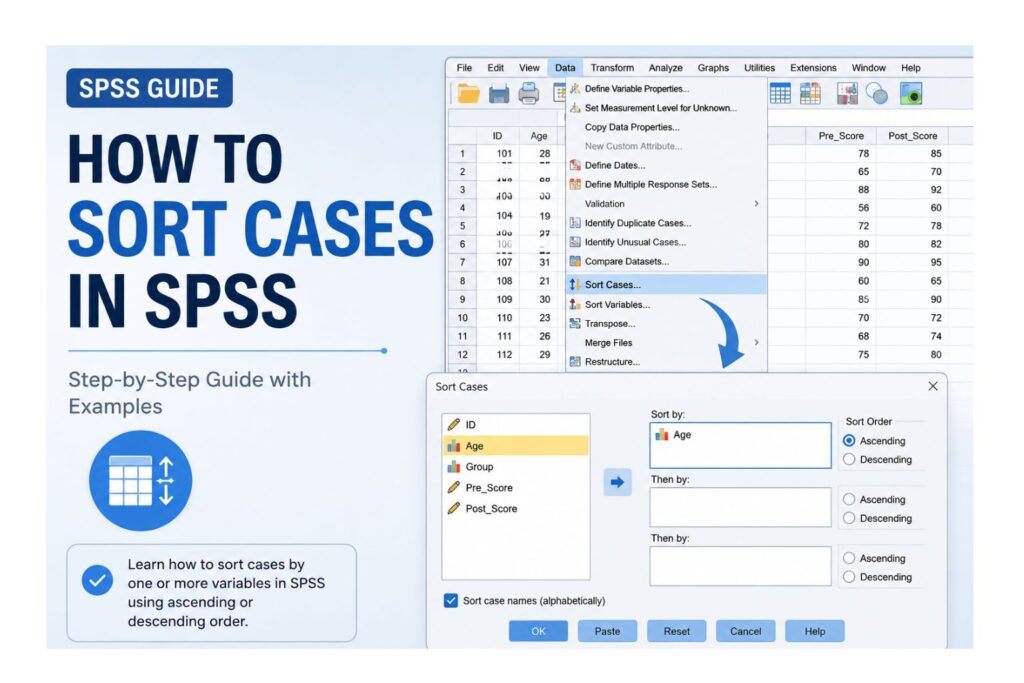
Sorting cases in SPSS is one of the most important data management steps before cleaning, checking, merging, or analyzing a dataset. If your SPSS file contains participant IDs, patient records, student numbers, survey dates, treatment groups, pretest scores, posttest scores, income values, or repeated measurements, sorting helps you organize the rows so the dataset is easier to inspect.
In SPSS, cases are rows. Each row usually represents one participant, student, patient, customer, household, company, or observation. Sorting cases rearranges those rows based on one or more selected variables.
Sorting does not change the actual data values. It only changes the order in which cases appear.
Need a clean SPSS file before analysis? Our Dissertation data analysis help service can help you sort cases, clean data, check missing values, identify duplicate IDs, merge files, run the correct tests, and prepare dissertation-ready results.
How Do You Sort Cases in SPSS?
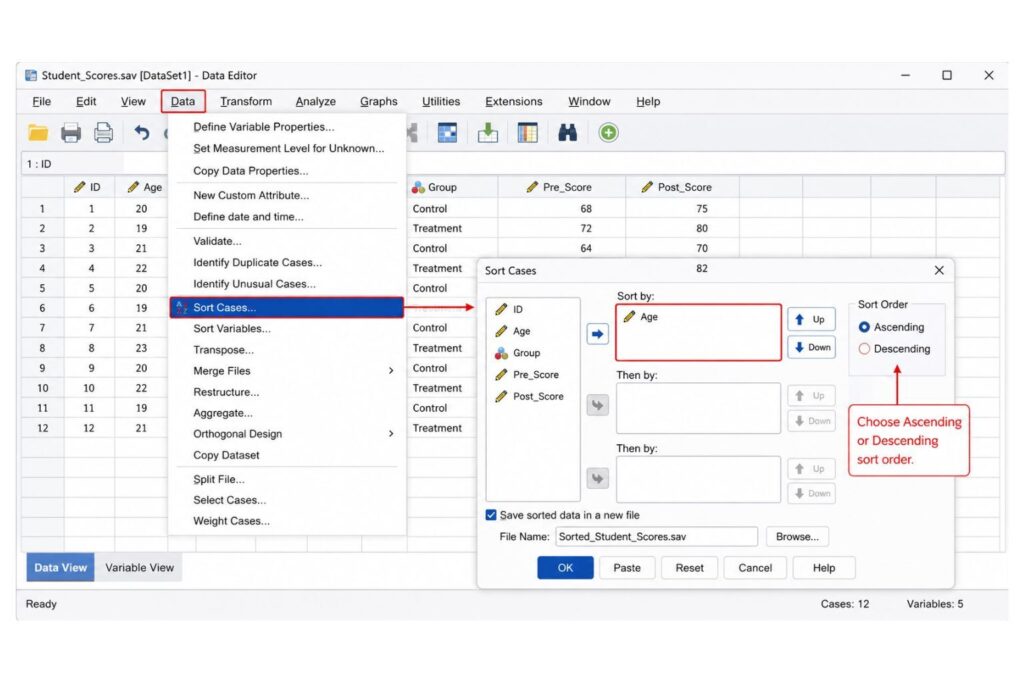
To sort cases in SPSS, go to Data > Sort Cases, move the variable you want to sort by into the Sort by box, choose Ascending or Descending, then click OK. SPSS rearranges the rows based on the selected variable without changing the original data values.
What Does Sort Cases Mean in SPSS?
Sort Cases in SPSS means arranging rows according to the values of one or more variables. A case is a row, while a variable is a column.
For example, if your dissertation dataset has 250 participants, each participant is one case. Your variables may include participant ID, gender, age, group, pretest score, posttest score, survey date, income level, or treatment category.
Sorting cases helps you place those participants in a meaningful order.
You may sort cases by:
| Variable | Example Use |
|---|---|
| Participant ID | Arrange participants from ID 001 to ID 250 |
| Age | Arrange respondents from youngest to oldest |
| Gender | Place gender categories together |
| Study group | Arrange control and treatment groups together |
| Pretest score | Review baseline scores from low to high |
| Posttest score | Identify the highest or lowest outcome scores |
| Survey date | Arrange responses from earliest to latest |
| Income | Arrange income values from lowest to highest |
| Hospital admission date | Review cases in chronological order |
| Customer ID | Organize business or survey records |
Sorting cases is different from selecting, filtering, splitting, or merging data. It does not remove participants, exclude records, create separate output, or combine files. It only changes the row order.
Cases vs Variables in SPSS
Understanding cases and variables is important before sorting.
| ID | Gender | Age | Group | Pre_Score | Post_Score |
|---|---|---|---|---|---|
| 101 | Female | 28 | A | 62 | 75 |
| 102 | Male | 21 | A | 70 | 82 |
| 103 | Female | 45 | B | 58 | 69 |
In this example, each participant is a case. Each column is a variable.
If you sort by Age, SPSS rearranges the rows according to age values. The participant’s ID, gender, group, pretest score, and posttest score remain attached to the correct person.
This matters because SPSS moves the entire row. It does not sort one column separately from the others.
Why Sorting Cases Matters Before SPSS Analysis
Sorting cases helps you inspect your dataset before running statistical tests. It is especially useful in dissertation research because errors in IDs, dates, groups, and scores can affect the accuracy of your results.
You may need to sort cases before:
| Purpose | Why Sorting Helps |
|---|---|
| Checking participant IDs | Makes missing or duplicate IDs easier to identify |
| Reviewing duplicate records | Similar IDs appear close together |
| Checking missing data | Missing values may appear together depending on sorting order |
| Comparing pretest and posttest scores | Helps confirm scores remain attached to the correct participant |
| Preparing files before merging | Helps inspect matching ID variables |
| Reviewing grouped data | Places participants from the same group together |
| Checking survey dates | Arranges records from earliest to latest |
| Reviewing extreme values | Places high or low scores at the top or bottom |
| Preparing case listings | Makes exported datasets easier to read |
| Cleaning dissertation data | Supports systematic screening before analysis |
For example, a nursing dissertation student may sort cases by Patient_ID before checking duplicate records. A psychology student may sort by Group and then Pretest_Score before reviewing baseline differences. A business student may sort by Customer_ID or Purchase_Date before preparing a merged dataset.
Sorting is useful before descriptive statistics, t-tests, ANOVA, chi-square tests, correlation, regression, repeated measures analysis, and other SPSS procedures. However, sorting itself is not a statistical test. It is a data organization step.
How Sorting Cases Supports SPSS Data Screening
Sorting cases is not only useful for organizing rows. It also supports data screening before analysis. Data screening helps you detect problems that may affect your SPSS results.
For example, sorting by Participant_ID can help you find duplicate records. Sorting by Age, Score, or Income can help you inspect unusually high or low values. Sorting by Assessment_Date can help you check whether repeated measurements are in the correct order.
| Data Screening Task | Variable to Sort By | Why It Helps |
|---|---|---|
| Check duplicate records | Participant_ID | Duplicate IDs appear close together |
| Review missing values | Key analysis variables | Missing values may become easier to inspect |
| Inspect outliers | Age, income, score, scale total | Very high or low values appear at the top or bottom |
| Check repeated measurements | Date or time variable | Records appear in correct time order |
| Prepare for merging | ID variable | Matching records become easier to review |
| Review group structure | Group variable | Cases from the same group appear together |
Sorting does not replace full data cleaning, but it makes data problems easier to see. If your dataset has duplicate IDs, missing values, incorrect codes, or inconsistent labels, our SPSS data cleaning help can help you prepare the file before final analysis.
Sort Cases vs Sort Variables in SPSS
Sort Cases and Sort Variables are different SPSS functions.
| Feature | Sort Cases | Sort Variables |
|---|---|---|
| What it rearranges | Rows/cases | Columns/variables |
| Example | Sort participants by age | Sort variable names alphabetically |
| Used for | Organizing participant records | Organizing variable layout |
| Does it change data values? | No | No |
| Common use | Checking IDs, dates, scores, or groups | Cleaning the Variable View layout |
Use Sort Cases when you want to rearrange participants or observations. Use Sort Variables when you want to rearrange columns.
How to Sort Cases in SPSS Using the Menu
The menu method is the easiest option for beginners because it is clear and visual.
Step-by-Step Menu Method
- Open your dataset in SPSS.
- Go to Data on the top menu.
- Click Sort Cases.
- Select the variable you want to sort by.
- Move the variable into the Sort by box.
- Choose Ascending or Descending.
- Click OK.
- Check Data View to confirm that the rows have been rearranged correctly.
What Happens After You Click OK?
SPSS rearranges the rows according to the selected variable.
For example, if you sort by Age in ascending order, the youngest participants appear first and the oldest participants appear last.
If you sort by Post_Score in descending order, the highest posttest scores appear first and the lowest posttest scores appear last.
The values remain attached to the correct cases. SPSS does not move one variable separately from the others. It moves the full row as a complete case.
Need Help Preparing Your SPSS Dataset?
If your dataset has duplicate IDs, missing values, incorrect variable types, inconsistent labels, or confusing group codes, clean the file before running analysis. Our SPSS data cleaning services can help you prepare a clean, analysis-ready SPSS dataset.
We can help with:
| SPSS Task | How We Help |
|---|---|
| Sorting cases | Organize records by ID, group, date, score, or other variables |
| Cleaning data | Check missing values, duplicates, coding errors, and inconsistent labels |
| Merging files | Combine files correctly by ID or matching variables |
| Filtering cases | Exclude incomplete or ineligible cases correctly |
| Selecting cases | Analyze only the cases that meet your study criteria |
| Running analysis | Perform descriptive and inferential statistics |
| Reporting results | Write clear SPSS results for dissertation chapters |
Ascending vs Descending Sorting in SPSS
When you sort cases in SPSS, you need to choose the sorting direction.
Ascending means values move from low to high, A to Z, or earliest to latest.
Descending means values move from high to low, Z to A, or latest to earliest.
Table 1: Ascending vs Descending Sorting in SPSS
| Variable Type | Ascending Order | Descending Order | Example |
|---|---|---|---|
| Numeric | Lowest to highest | Highest to lowest | Age: 18, 21, 30 |
| String/Text | A to Z | Z to A | Female, Male, Other |
| Date | Earliest to latest | Latest to earliest | 01-Jan-2024 to 01-Mar-2024 |
| Score | Lowest score first | Highest score first | Pretest or posttest score |
| ID number | Smallest ID first | Largest ID first | 001, 002, 003 |
Use ascending order when checking IDs, ages, or dates from the beginning. Use descending order when you want the largest values, newest dates, or highest scores to appear first.
How to Sort Cases Quickly by Right-Clicking a Variable
SPSS also allows quick sorting directly from Data View. This method is useful when you only need to sort by one variable.
Quick Sort Method
- Go to Data View.
- Right-click the variable name at the top of the column.
- Choose Sort Ascending or Sort Descending.
When to Use Quick Sort
Use quick sort when you want to:
| Task | Example |
|---|---|
| Check ID order | Sort ID from lowest to highest |
| Review dates | Sort survey date from earliest to latest |
| Check scores | Sort posttest score from highest to lowest |
| Inspect age values | Sort age from youngest to oldest |
| Find possible outliers | Sort a numeric variable from highest to lowest |
When Not to Rely Only on Quick Sort
Do not rely only on right-click sorting when:
| Situation | Better Option |
|---|---|
| You need to sort by multiple variables | Use Data > Sort Cases |
| You need reproducible steps | Use SPSS syntax |
| You are documenting dissertation data cleaning | Save syntax |
| You are preparing files before merging | Use controlled sorting and backup copies |
Quick sort is convenient, but syntax is better when you need to document dissertation data preparation.
How to Sort Cases by One Variable in SPSS
Sorting by one variable means SPSS rearranges all rows based on one selected column.
Assume your dataset has these variables:
| Variable | Meaning |
|---|---|
| ID | Participant identification number |
| Gender | Participant gender |
| Age | Participant age |
| Group | Study group |
| Pre_Score | Score before intervention |
| Post_Score | Score after intervention |
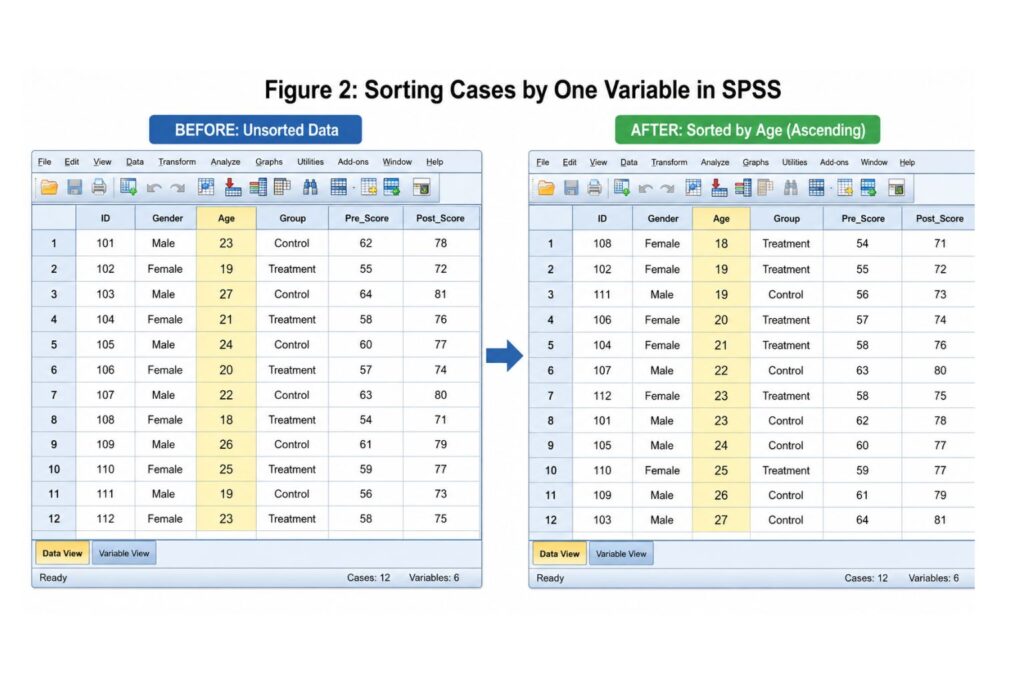
You want to sort participants by Age in ascending order.
Steps to Sort by One Variable
- Go to Data > Sort Cases.
- Select Age.
- Move Age to the Sort by box.
- Choose Ascending.
- Click OK.
Table 2: Example of Sorting Cases by Age in SPSS
| Before Sorting: ID | Age | Group | After Sorting: ID | Age | Group |
|---|---|---|---|---|---|
| 104 | 32 | B | 102 | 21 | A |
| 101 | 28 | A | 101 | 28 | A |
| 103 | 45 | B | 104 | 32 | B |
| 102 | 21 | A | 103 | 45 | B |
After sorting, participant 102 appears first because they are the youngest. Participant 103 appears last because they are the oldest.
The key point is that SPSS moves the entire row. It does not separate the participant from their group or score values.
Dissertation Example: Sorting by Participant ID Before Checking Duplicates
A common dissertation data-cleaning task is checking whether participant IDs are duplicated.
Assume your dataset has 250 survey responses. Before analysis, you want to check whether any participant completed the survey twice.
You can sort by Participant_ID in ascending order. After sorting, duplicate IDs will appear next to each other, making them easier to identify.
| Before Sorting | After Sorting by Participant_ID |
|---|---|
| ID 104 | ID 101 |
| ID 109 | ID 102 |
| ID 101 | ID 103 |
| ID 103 | ID 104 |
| ID 102 | ID 109 |
This is useful before running analyses because duplicate records can affect descriptive statistics, regression, ANOVA, correlation, chi-square tests, and other statistical results.
Dissertation Example: Sorting by Date in a Pretest-Posttest Study
In a pretest-posttest dissertation study, sorting by date can help confirm whether records are in the correct time order.
For example, a nursing or public health student may collect baseline and follow-up measurements. Sorting by Assessment_Date helps identify whether pretest records appear before posttest records.
| Participant_ID | Assessment_Date | Score_Type | Score |
|---|---|---|---|
| 101 | 02-Jan-2025 | Pretest | 62 |
| 101 | 02-Mar-2025 | Posttest | 75 |
| 102 | 05-Jan-2025 | Pretest | 70 |
| 102 | 05-Mar-2025 | Posttest | 82 |
This helps you detect records that are out of order, missing, duplicated, or incorrectly coded.
How to Sort Cases by Multiple Variables in SPSS
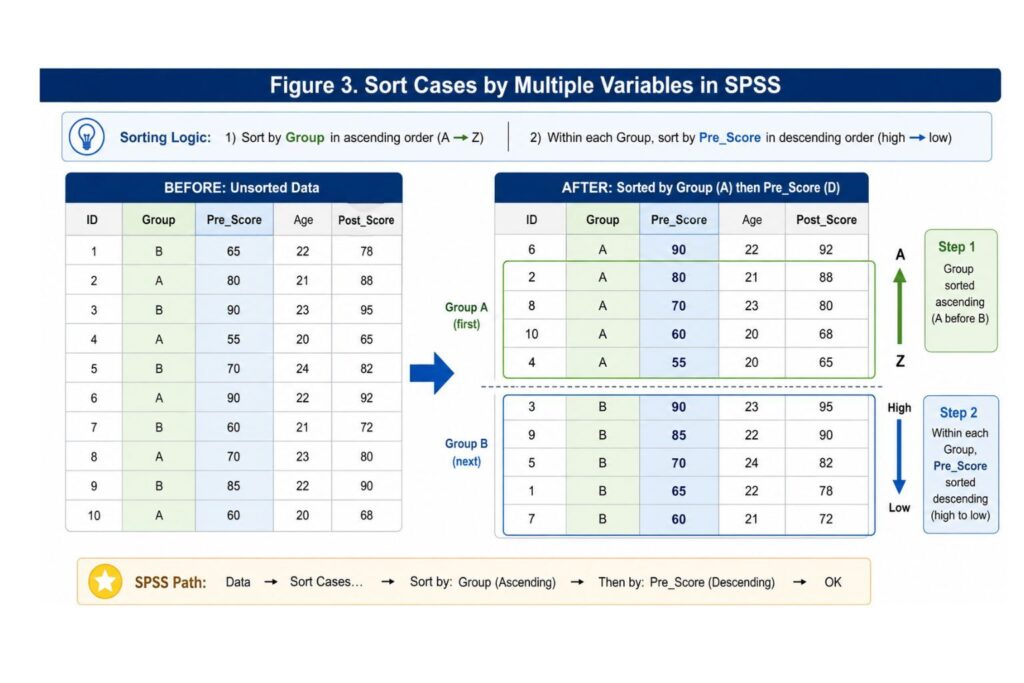
SPSS can sort by more than one variable. This is useful when you want to organize cases by group first and then by another value within each group.
For example, you may want to sort by:
- Group in ascending order
- Pre_Score in descending order
SPSS first arranges the cases by group. Then, inside each group, it arranges cases by pretest score from highest to lowest.
Example
Suppose you have two groups: A and B.
If you sort by Group ascending and Pre_Score descending, SPSS will place all Group A cases together first. Within Group A, the participant with the highest pretest score appears first. Then SPSS does the same for Group B.
Table 3: Sorting by One Variable vs Multiple Variables in SPSS
| Sorting Type | Example | What SPSS Does | Best Use |
|---|---|---|---|
| One variable | Sort by Age ascending | Arranges all cases from youngest to oldest | Checking age distribution |
| One variable | Sort by Post_Score descending | Places highest scores first | Reviewing top scores |
| Multiple variables | Group ascending, Pre_Score descending | Sorts by group first, then score within group | Comparing scores inside groups |
| Multiple variables | Date ascending, ID ascending | Sorts by date first, then ID | Longitudinal or repeated records |
| Multiple variables | Gender ascending, Age descending | Sorts gender categories first, then age within each category | Reviewing subgroup structure |
Steps to Sort by Multiple Variables
- Go to Data > Sort Cases.
- Move the first sorting variable into the Sort by box.
- Move the second sorting variable below the first.
- Choose the sorting order for each variable.
- Click OK.
- Check the output in Data View.
The order of variables in the Sort by box matters. SPSS sorts by the first variable first, then by the second variable within the first sorting category.
SPSS SORT CASES Syntax
SPSS syntax is useful when you want to document your data preparation steps. This is especially important for dissertation research because syntax creates a record of what you did before analysis.
Sort by ID in Ascending Order
SORT CASES BY ID (A).Sort by Age in Ascending Order
SORT CASES BY Age (A).Sort by Posttest Score in Descending Order
SORT CASES BY Post_Score (D).Sort by Group and Then Pretest Score
SORT CASES BY Group (A) Pre_Score (D).What A and D Mean
| Syntax Code | Meaning |
|---|---|
(A) | Ascending order |
(D) | Descending order |
If you do not specify the order, SPSS commonly sorts in ascending order. However, it is better to specify (A) or (D) clearly when preparing dissertation syntax.
Why Use Syntax?
Use syntax because it helps you:
| Benefit | Explanation |
|---|---|
| Document data cleaning | Shows exactly how the dataset was prepared |
| Repeat the same process | Allows you to rerun the same sorting command |
| Reduce manual errors | Avoids relying only on clicks |
| Support supervision | Lets your supervisor or statistician review your steps |
| Improve transparency | Strengthens your dissertation data management process |
Sorting Numeric, String, and Date Variables in SPSS
Sorting works differently depending on variable type. Before sorting, check Variable View to confirm whether your variable is numeric, string, or date.
Numeric Variables
Numeric variables include values such as:
| Numeric Variable | Example |
|---|---|
| Age | 18, 21, 30 |
| Score | 55, 70, 88 |
| Income | 25000, 40000, 75000 |
| Number of visits | 1, 2, 3 |
| Likert total score | 12, 18, 25 |
Numeric sorting is usually straightforward. Ascending order places the smallest number first. Descending order places the largest number first.
String Variables
String variables contain text. Examples include:
| String Variable | Example |
|---|---|
| Gender | Female, Male |
| Group name | Control, Treatment |
| Department | Nursing, Psychology, Education |
| Text ID | P1, P2, P10 |
| Country | Canada, UK, USA |
Be careful when sorting IDs stored as text. A string ID may not sort the same way as a numeric ID. For example, text values such as 1, 10, and 2 can appear in an unexpected order because SPSS reads them as text rather than numbers.
Date Variables
Date variables include:
| Date Variable | Example |
|---|---|
| Survey date | 12-Jan-2025 |
| Admission date | 03-Mar-2025 |
| Follow-up date | 15-Apr-2025 |
| Assessment date | 01-May-2025 |
Dates should be correctly defined as date variables in SPSS. If your dates are stored as plain text, sorting may not work as expected.
Sorting Cases Before Merging Files in SPSS
Sorting cases is often useful before merging files, especially when two datasets share a key variable such as:
| Key Variable | Example |
|---|---|
| Participant_ID | Dissertation participant records |
| Student_ID | Education dataset |
| Patient_ID | Nursing or healthcare dataset |
| Case_ID | Survey or research dataset |
| Household_ID | Public health or social science dataset |
Sorting alone does not merge files. It only organizes records. Merging files combines datasets by adding variables or adding cases.
If you are working with more than one SPSS dataset, read our full guide on how to merge files in SPSS.
Before merging SPSS files, check that:
| Checklist Item | Why It Matters |
|---|---|
| The key ID variable exists in both files | SPSS needs a common matching variable |
| The ID variable has the same meaning in both files | Prevents incorrect matches |
| The ID variable has the same type | Numeric and string IDs may not match correctly |
| Duplicate IDs have been checked | Duplicate records can create merge errors |
| Cases are organized before review | Makes it easier to inspect matching records |
| A backup copy has been saved | Protects the original dataset |
Sort Cases vs Split File vs Select Cases vs Filter Data vs Merge Files
These SPSS tools are related, but they do different things. Understanding the difference helps avoid mistakes during data preparation.
Table 4: Sort Cases vs Other SPSS Data Management Tools
| SPSS Function | What It Does | Does It Rearrange Rows? | Does It Exclude Cases? | Best Use |
|---|---|---|---|---|
| Sort Cases | Arranges rows by selected variables | Yes | No | Organizing IDs, dates, groups, or scores |
| Split File | Runs analyses separately by groups | No | No | Separate output by gender, group, or category |
| Select Cases | Includes only cases that meet a condition | No | Yes | Analyzing a subgroup |
| Filter Data | Temporarily excludes cases using a filter variable | No | Yes, temporarily | Excluding incomplete or ineligible cases |
| Merge Files | Combines two or more datasets | Not mainly | No | Adding cases or variables from another file |
Sort Cases vs Split File
Sort Cases changes the row order. Split File does not rearrange the dataset. Instead, it tells SPSS to produce separate analysis output for different groups.
For example, Split File can produce descriptive statistics separately for male and female participants. Sort Cases only arranges the rows.
For a related guide, read how to split file in SPSS.
Sort Cases vs Select Cases
Select Cases limits analysis to cases that meet a condition. For example, you may select only participants aged 18–35.
Sort Cases does not include or exclude anyone. It only changes row order.
For a full explanation, read how to select cases in SPSS.
Sort Cases vs Filter Data
Filtering temporarily excludes cases using a filter variable. For example, incomplete questionnaires can be coded as 0 and complete questionnaires as 1.
Sort Cases does not exclude cases. It simply rearranges them.
For a related tutorial, read how to filter data in SPSS..
Sort Cases vs Merge Files
Merge Files combines datasets. Sort Cases organizes one dataset. Sorting is sometimes useful before reviewing a merge, but sorting does not perform the merge.
For the full process, read how to merge files in SPSS..
Common Mistakes When Sorting Cases in SPSS
Sorting is simple, but small mistakes can confuse your dataset review.
1. Sorting the Wrong Variable
A common mistake is choosing the wrong variable in the Sort Cases dialog box. For example, sorting by row number instead of participant ID may not help you check duplicate records.
How to avoid it: Check the variable name carefully before clicking OK.
2. Choosing Descending Instead of Ascending
If you want IDs from smallest to largest but choose descending, the largest ID appears first.
How to avoid it: Confirm the sorting direction before running the command.
3. Sorting String IDs Instead of Numeric IDs
IDs stored as string variables may sort unexpectedly. For example, 10 may appear before 2 if the values are treated as text.
How to avoid it: Check Variable View and confirm whether the ID variable is numeric or string.
4. Assuming Sorting Deletes or Filters Cases
Sorting does not delete cases. It only rearranges rows.
How to avoid it: Use Select Cases or Filter Data only when you want to exclude cases from analysis.
5. Forgetting to Save a Backup Copy
If you sort and save the file, the new row order is saved.
How to avoid it: Save a backup copy before major data preparation.
6. Confusing Sort Cases with Split File
Sorting by group is not the same as analyzing separately by group.
How to avoid it: Use Split File when you want separate output by group.
7. Sorting One Dataset but Not Checking the Matching File Before Merging
When merging files, sorting one dataset may help review records, but both files must be checked carefully.
How to avoid it: Check key ID variables, duplicates, and variable types in both files.
8. Ignoring Missing Values
Missing values may appear at the top or bottom after sorting, depending on the variable and sorting order.
How to avoid it: Review missing value settings before interpreting sorted data.
9. Forgetting to Document Sorting Syntax
Manual sorting can be hard to trace later.
How to avoid it: Save SPSS syntax for sorting steps.
10. Manually Rearranging Rows Outside SPSS
Moving rows manually in Excel or another program can create errors if not done carefully.
How to avoid it: Use SPSS sorting tools whenever possible.
How to Check Whether Sorting Worked
After sorting cases, always check the dataset before continuing with analysis.
Use this checklist:
| Check | What to Look For |
|---|---|
| First rows | Do the smallest, earliest, or highest values appear where expected? |
| Last rows | Does the opposite end of the sorted range look correct? |
| ID values | Are participant IDs in the correct order? |
| Missing values | Did missing values move to the top or bottom? |
| Group order | Are categories arranged as expected? |
| Attached values | Did scores, dates, and labels remain attached to the correct case? |
| Syntax record | Did you save the sorting command? |
| Backup file | Is the original dataset still available? |
If something looks wrong, do not continue with analysis. Check variable type, sorting direction, value labels, and missing value settings.
Best Practices for Sorting Cases in Dissertation Data Analysis
Good sorting practice protects your analysis from avoidable data preparation errors.
| Best Practice | Why It Helps |
|---|---|
| Save a backup before sorting | Protects the original file |
| Use syntax | Documents the data cleaning process |
| Sort by ID before checking duplicates | Places similar IDs together |
| Sort by date before reviewing repeated measures | Helps check time order |
| Sort by group before reviewing categories | Makes group patterns easier to inspect |
| Check variable type before sorting | Prevents ID or date sorting problems |
| Avoid manual row movement | Reduces accidental misalignment |
| Document sorting decisions | Supports dissertation transparency |
| Use the same logic across related files | Helps when merging or comparing datasets |
Sorting may look like a small task, but it can affect how easily you detect data problems before analysis.
SPSS Data Sorting Help and Pricing
SPSS sorting help may be simple or complex depending on the condition of your dataset. A small, clean file may only need basic sorting and checking. A messy dissertation dataset may need sorting, data cleaning, missing value review, duplicate ID checks, file merging, variable recoding, statistical analysis, and results interpretation.
Because every dataset is different, pricing is usually based on the work required.
| Pricing Factor | Why It Affects Cost |
|---|---|
| Number of cases | Larger datasets take longer to inspect |
| Number of variables | More variables require more checking |
| Data condition | Messy files need deeper cleaning |
| Missing values | Missing data may require review and documentation |
| Duplicate records | Duplicate IDs must be identified carefully |
| File merging | Multiple files increase complexity |
| Variable coding | Incorrect labels or codes may need correction |
| Analysis needs | Sorting plus analysis costs more than sorting only |
| Results writing | Interpretation and chapter writing add more work |
| Deadline | Urgent support may require faster handling |
Request a Custom SPSS Data Preparation Quote
Request a custom quote through our dissertation data analysis help page. Share your dataset details, deadline, instructions, and required analysis so we can guide you on the right level of support.
What You Receive with Our SPSS Support
When you request SPSS sorting, cleaning, or dissertation data analysis support, you can receive more than basic SPSS steps. The goal is to help you prepare a clean, organized, and analysis-ready dataset.
| Deliverable | What It Includes |
|---|---|
| Cleaned SPSS file | Sorted, checked, and organized dataset |
| SPSS syntax file | Documented data preparation and analysis commands |
| Data screening notes | Summary of missing values, duplicates, and coding checks |
| Output file | SPSS tables and statistical output |
| Results interpretation | Clear explanation of findings in academic language |
| Method support | Guidance aligned with research questions or hypotheses |
| Data preparation advice | Notes on issues that should be fixed before analysis |
This builds confidence because you can see what you may receive, not just a general promise of help.
Who We Help with SPSS Data Sorting and Cleaning
Our SPSS dissertation support is suitable for students and researchers who need help preparing data before analysis.
| Student or Researcher | Common SPSS Need |
|---|---|
| Undergraduate students | Basic sorting, coding, and descriptive statistics |
| Master’s students | Dissertation data cleaning, merging, and analysis |
| PhD researchers | Advanced data preparation and statistical testing |
| Nursing students | Patient data, survey data, and intervention results |
| Psychology students | Pretest-posttest, group comparison, and scale data |
| Education students | Student records, test scores, and survey responses |
| Business students | Customer data, sales data, and performance datasets |
| Public health students | Patient IDs, repeated measures, and outcome variables |
Whether your dataset only needs sorting or requires full data cleaning and statistical analysis, the first step is to make sure the SPSS file is organized correctly.
Why Students Trust Our SPSS Dissertation Support
Students need more than basic SPSS steps. They need accurate data preparation, clear analysis, and results that match their dissertation objectives.
Our SPSS support focuses on:
| Trust Factor | What It Means for You |
|---|---|
| Dissertation-focused support | Help is aligned with research questions, hypotheses, and methodology |
| SPSS data cleaning experience | Your dataset can be checked before analysis |
| Clear communication | You can understand what was done and why |
| Syntax-based workflow | Data preparation steps can be documented |
| Confidential handling | Your dataset and instructions are treated carefully |
| Results interpretation | Output can be explained in plain academic language |
| Student-friendly guidance | Support is written for undergraduate, master’s, and PhD students |
If your SPSS file is not ready for analysis, our Data cleaning services can help you organize the dataset before running final tests.
Troubleshooting: Why Sorting Cases May Not Look Right
Sometimes sorting does not produce the order you expected. The problem is usually related to variable type, value labels, missing values, or sorting direction.
| Problem | Likely Cause | How to Fix It |
|---|---|---|
| ID numbers appear out of order | ID variable may be stored as string | Check Variable View and recode if needed |
| Dates do not sort correctly | Dates may be stored as text | Convert to SPSS date format |
| Missing values appear first or last | SPSS is sorting missing values with the selected variable | Review missing value settings |
| Groups are not arranged as expected | Value labels may hide numeric codes | Check actual values, not only labels |
| Sort order disappears after reopening old file | Sorted file may not have been saved | Save a new version after sorting |
| Highest score does not appear first | Ascending was selected instead of descending | Rerun sorting with descending order |
| Multiple-variable sort looks wrong | Variables may be in the wrong order in the Sort by box | Place the primary sorting variable first |
FAQs About How to Sort Cases in SPSS
Sort Cases is an SPSS data management function that rearranges rows based on one or more selected variables. It helps organize participant records, IDs, dates, scores, or groups before analysis.
Go to Data > Sort Cases, select the variable you want to sort by, move it into the Sort by box, choose ascending or descending order, and click OK.
No. Sorting cases does not change the actual values in your dataset. It only rearranges the order of the rows.
Open Data > Sort Cases, choose your sorting variable, select Ascending, and click OK. Numeric values move from lowest to highest, text values from A to Z, and dates from earliest to latest.
Open Data > Sort Cases, choose your sorting variable, select Descending, and click OK. Numeric values move from highest to lowest, text values from Z to A, and dates from latest to earliest.
Yes. SPSS allows you to sort by multiple variables. The first variable in the Sort by box is sorted first, and the second variable is sorted within the order created by the first variable.
The basic syntax is:SORT CASES BY VariableName (A).
For descending order, use:SORT CASES BY VariableName (D).
For multiple variables, use:SORT CASES BY Group (A) Score (D).
No. Sorting cases rearranges rows. Filtering data temporarily excludes selected cases from analysis. Filtering affects which cases are analyzed, while sorting only affects row order.
No. Select Cases includes only cases that meet a condition. Sort Cases does not include or exclude cases. It only organizes them.
Sorting can help you review ID variables before merging, but sorting alone does not merge files. Before merging, check that the ID variable exists in both files, has the same type, and does not contain unexpected duplicates.
Pricing depends on the dataset size, number of variables, data condition, deadline, and whether you need only sorting or full data cleaning, analysis, and interpretation. Request a quote through our Dissertation data analysis help page for accurate pricing.
You may be able to undo sorting immediately using the undo option, but this is not always reliable after several steps. The best practice is to save a backup copy before sorting.
Your ID variable may be stored as a string instead of a numeric variable. Check Variable View. If IDs are stored as text, SPSS may sort them alphabetically rather than numerically.
Get Expert SPSS Dissertation Data Help
Sorting cases in SPSS is simple, but sorting errors can affect duplicate checks, missing value review, file merging, data screening, and final dissertation analysis.
If your dataset has duplicate IDs, missing values, mismatched files, incorrect variable types, unclear value labels, or confusing group codes, our SPSS experts can help you prepare a clean, dissertation-ready dataset.
Get support with Dissertation data analysis help, Data cleaning services,, file merging, filtering, selecting cases, data screening, statistical testing, and results interpretation.